Convert a TIFF to BMP File Format Without Losing Data
You’ll find out how to convert TIFF to BMP quality without compromising the quality. Have you ever had a thought about what you would do if you ever needed to convert a TIFF image to a BMP image format? If you haven’t, don’t worry. In this blog, we are going to show you just how to convert TIFF to BMP easily and quickly. You already know that images are an important component for every user who works in photography, design, and data storage.
TIFF may be one of the preferred formats we choose to use for high-quality images, where many users choose BMP because it’s easy, compatible, and small. In this article, we are going to provide you with a step-by-step guide for successfully convert TIFF to BMP. You will investigate various solutions for getting a TIFF to a BMP, which include simple manual methods, a professional, line, and sophisticated, and advanced converter tool for converting TIFF to BMP. So let’s get going and explore the best way to convert images from TIFF to BMP without the trouble
Understanding What TIFF & BMP Files Are
With a great variety of image file formats to choose from, we often choose a format based on how we plan to use it.
- TIFF (Tagged Image File Format) is one of the most popular file formats to store high-quality images. TIFF supports multiple layers, it is lossless (meaning it retains all quality when saved), and is a common file type used in printing, photography, and scanning. However, typically, TIFF files are quite large.
- BMP (Bitmap Image File) is a raster graphics file format designed by Microsoft. BMP stores images as an uncompressed bitmap, allowing every system and application to open a BMP file. BMP images are straightforward, compatible, and open without the need for a separate piece of software.
Why Convert a TIFF File to BMP File Format?
There are lots of different reasons a user would need to convert a TIFF file to a BMP file. The following points summarize the most common reasons for converting a TIFF file to a BMP file:
- Compatibility: BMP files will open everywhere on all Windows devices with no need for special tools.
- Simplicity: BMP image files are straightforward; they do not have the complex compression that is seen in TIFF formats.
- Size: In some instances, BMP files can be smaller than TIFF and easier to work with in older applications.
- Editing: Some graphical editors prefer to work with BMP images when editing images for quicker image processing.
How to Convert TIFF to BMP Format?
In this article, I will cover ways of converting TIFF to BMP. There are ways to do this, either manually or using a professional TIFF to BMP converter.
Convert TIFF to BMP Format Using Manual Methods
Simple Steps for Windows (MS Paint):
- Firstly, right-click on the TIFF image and select MS Paint as the application to use to open the file.
- Then, click the File tab > Save As.
- After that, when prompted to select a file format, choose BMP Picture.
- Next, choose a location to save the BMP file.
- Lastly, save the BMP file.
Simple Steps for Mac (Preview):
- Now, open the TIFF file using Preview.
- Then, click on File > Export.
- After that, from the exported menu, choose BMP from the listed formats.
- At the end, choose a location, then click Save.
Limitations of the Manual Method
- Can not convert TIFF to BMP in bulk; it involves doing only one at a time.
- There may be a loss of image quality during conversion.
- It may not be feasible to users who are trying to process multiple TIFF files which are large.
- This method might be tedious if the user is trying to process hundreds of images.
How to Batch Convert TIFF to BMP Like a Professional
When wanting to batch convert TIFF files to BMP, it is recommended to use an established TIFF to BMP converter. This is a professional TIFF Converter that will let you convert TIFF to BMP files in bulk, and you can benefit from premium features that allow the conversion process to be completed in a matter of minutes. Be it one file or many file conversion processes, this software makes the job super quick and accurate.
It preserves image quality, keeps your data safe, and helps effortlessly perform a TIFF vs. BMP conversion. This professional TIFF to BMP converter also has a free trial, so you can try out the program’s features and any upgrade, if you wish. If you’re still having any issues in completing the learning of how to convert TIFF to BMP, you can always reach out to the support team, has also has a great service of 24/7 for guidance and assistance. No,w let’s get into the easy steps of doing an image conversion from one TIFF to BMP format in batch.
Quick & Easy Methods to Use TIFF to BMP Converter
- Firstly, install the solution on your system to start the conversion.
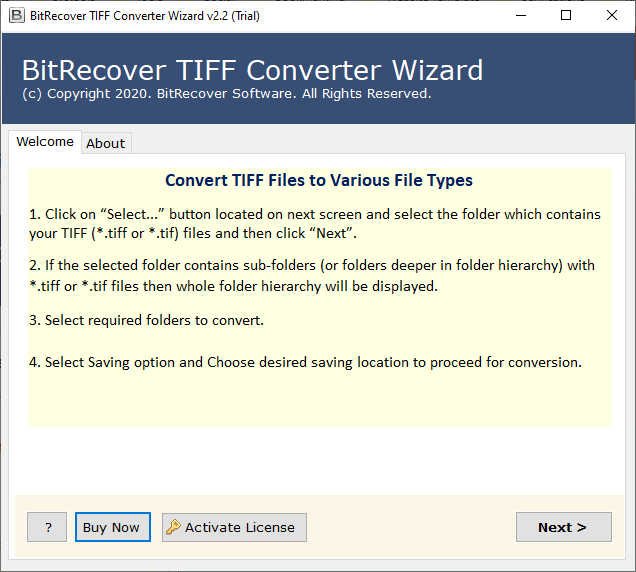
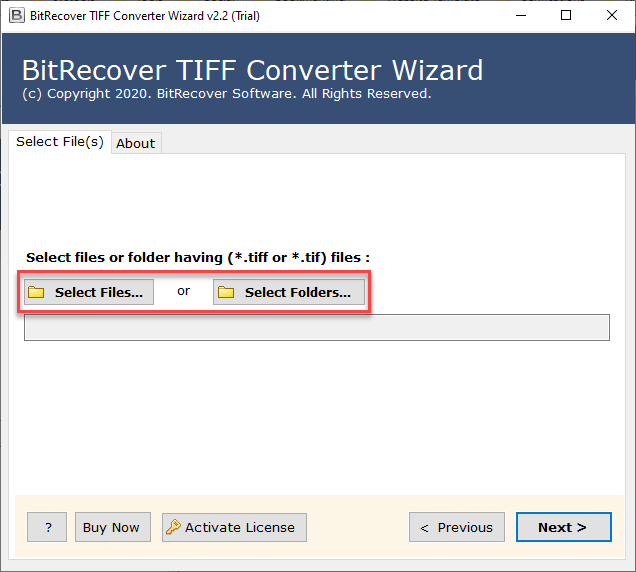
- Secondly, choose from dual option to upload TIFF data files into the panel.
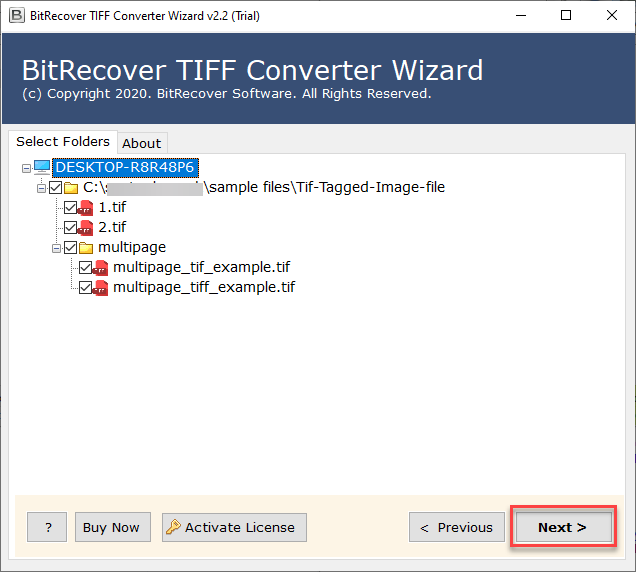
- Now, preview entirely uploaded data carefully.
- Next, choose BMP from the select saving option list.
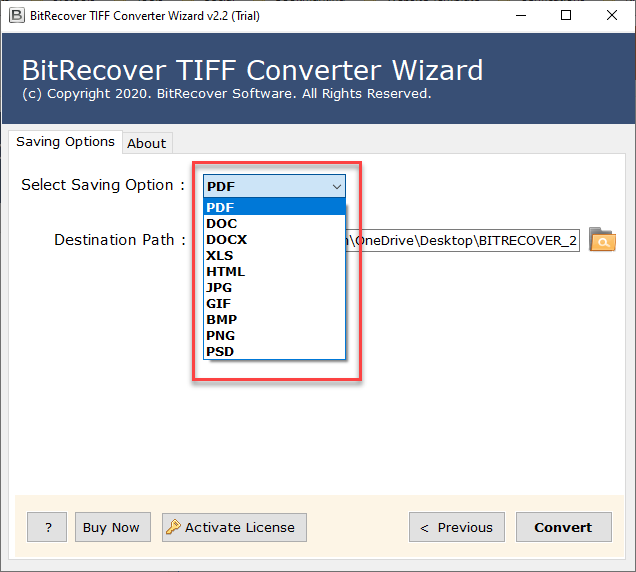
- Next, select the destination path to save the resulting data.
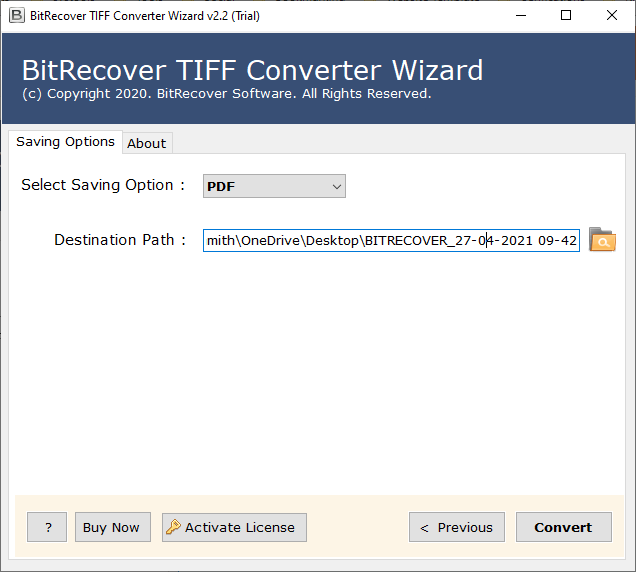
- Lastly, click on the convert button to complete the process.
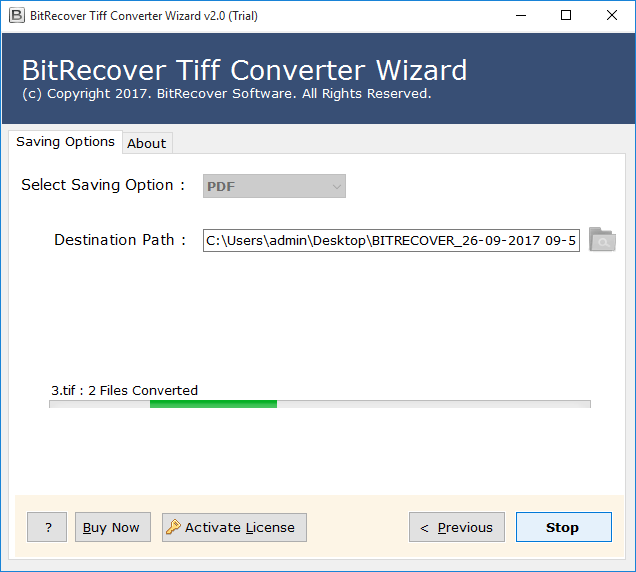
Features of Using This Tool to Convert TIFF File to BMP
- Give you two choices for uploading either TIFF files or complete folders, using the Select Files or Select Folder option.
- A standalone TIFF to BMP converter that doesn’t need any 3rd-party software.
- Will ensure nothing is lost and that the quality is the same in the TIFF vs BMP conversion.
- Keeps all your uploaded TIFF images safe and sound throughout the whole conversion.
- Let’s you bulk process and export from TIFF to BMP so you save time from doing it one by one.
- Let’s you create a BMP file for every TIFF image to your specifications.
- Easy to use and learn. No technical knowledge is needed to figure out how to convert TIFF to BMP.
Conclusion
This information provides how to convert TIFF to BMP in an easy way. You can also use MS Paint (on Windows) or Preview (on Mac) if you just need to do one or two files. But if you want to convert TIFF images in bulk, then using a TIFF to BMP converter may be your best option. With TIFF vs BMP, you will have a quality professional in TIFF vs simplicity, compatibility, and fast sharing in BMP. If you have any issues during the conversion process.