Convert TIFF to GIF Format Easily Without Losing Data
Users want to convert TIFF to GIF for multiple reasons since TIFF files are large and not easy to share. While the TIFF (or TIF) format is excellent for downloading scans, photos, and documents at full resolution, it is not suitable for the web due to its size. GIF is a lightweight format, loads fast, and is compatible with all browsers, devices, and applications. Implementing a TIFF into a GIF available on any platform can easily be accomplished with a TIFF to GIF converter.
The conversion allows users to change TIF to GIF while keeping the image integrity intact. The TIFF to GIF conversion reduces file size, increases speed by making the images fast to open, and allows sharing through emails, websites, and social media. That is why many users convert TIFF to GIF. They want small, easy-to-access, and web-ready files without worrying about access and compatibility.
Read More: Convert TIFF to PSD
Difference Between TIFF and GIF Explained
- TIFF: (TIF) files are often used in high-quality scanning, for example, in medical imagery, contracts, and professional photographs. Such formats have a silver lining; clear image quality; crooked dark side; often, files are too large to share, look terrible online, and just don’t make the cut in web pages.
- GIF: (GIF) format images, however, are welcome on nearly all platforms, files are usually small in size, and almost everybody can share these files. GIF images do not have as much detail as TIFF images, but due to file and folder size, GIF images are often the best option for web, share, and even email formats.
The Advantages of Convert TIFF to GIF
- Smaller file sizes: GIF are compressed files, allowing for quicker loading and easier sharing.
- Universal compatibility: GIF works with almost all devices, browsers, and applications.
- Better for web use: Perfect for websites, emails, or documents where size is a constraint.
- Keeps simple images clear: Great for graphics, scanned pages, and line art.
- Multiple pages supported: GIF will support sequences (animated or static), making them more versatile than large TIFF.
Manually Convert TIFF to GIF Using Photoshop
- Firstly, open Adobe Photoshop on your device.
- Secondly, click File > Open and select your TIFF image.
- Then, make any changes as needed.
- Now, click File > Save As.
- Then, select GIF in the format drop-down.
- Lastly, select where you’d like to save it on your computer and click Save.
Drawbacks of Manual Conversion
- Only converts one TIFF at a time.
- Very tedious and time-consuming, unintuitive for bulk files.
- You must have Photoshop (or similar high-end editing tools).
- There may be inconsistencies when converting multiple images.
Use the Amazing Method to Convert TIFF to GIF Professionally
To convert TIFF files to GIF files reliably, the solution is simply to use a professional TIFF Converter. A professional conversion tool is ideal because it provides speed and avoids mistakes. You can complete more with an automated converter in no time, hassle, and with no technical experience required. The tool can also convert TIF and TIFF format files. Plus, the automated conversion allows for bulk converting, so you can convert and create GIF from multiple TIFF images simultaneously and still retain quality.
With a few clicks, you can easily and rapidly convert your large TIFF files into small, shareable images in GIF format. The clarity of the original image is retained. You can also manage hundreds of files at one time. If you need to convert TIF to GIF quickly, consistently, and reliably, a professional TIFF to GIF converter is the way to go.
Steps to Convert TIFF to GIF
- Download and install the TIFF to GIF converter on your computer.
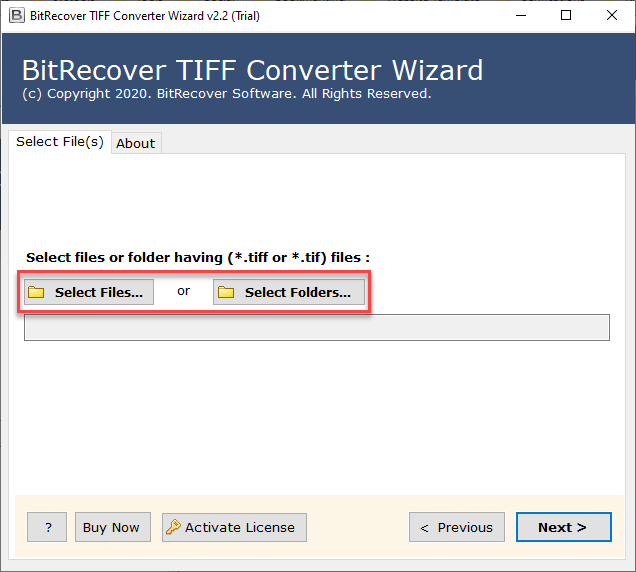
- Add your TIFF images using the Select Files or Select Folders option.
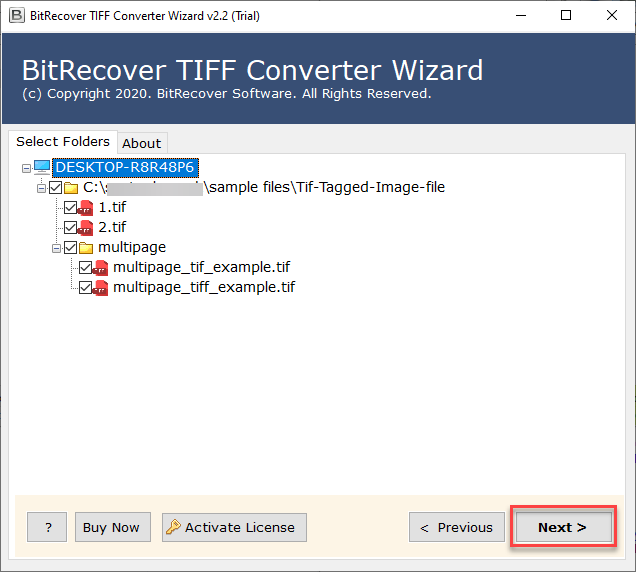
- Then, check or uncheck your uploaded files before processing.
- Choose GIF as the output format.
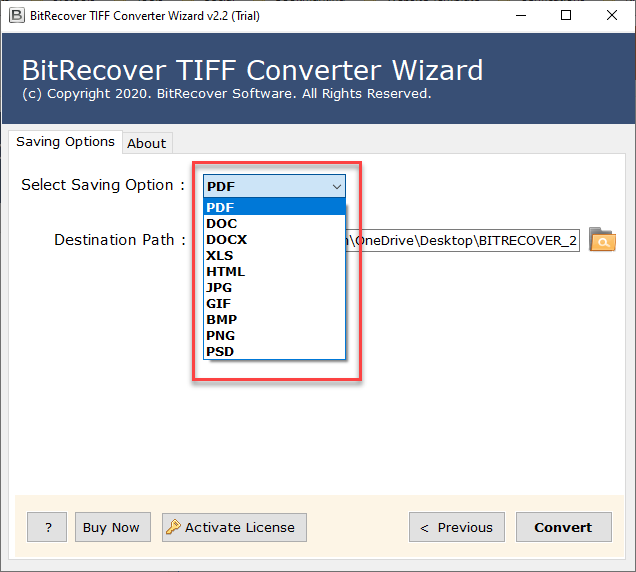
- Select your preferred destination folder for saving the converted files.
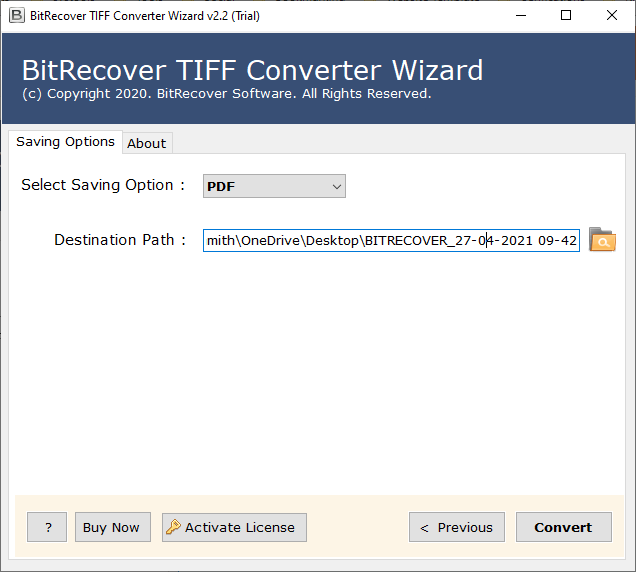
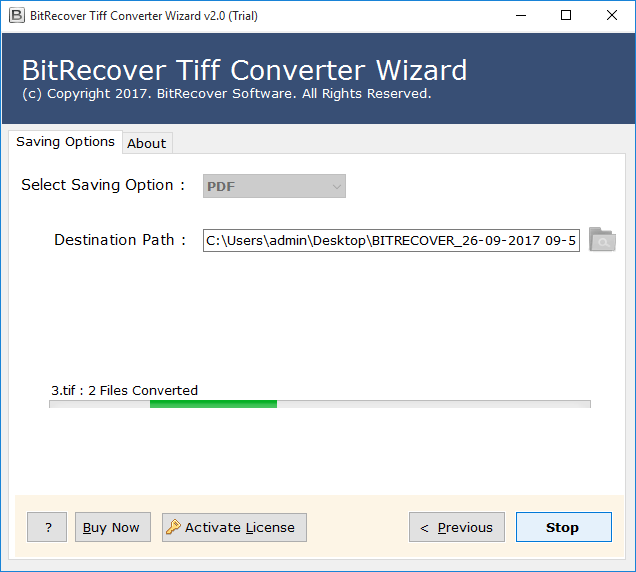
- Finally, click on the Convert button to begin the process.
Read More: TIFF to Word Converter
Benefits of a TIFF to GIF Converter
- Offers short & quick steps to convert your TIFF into GIF while retaining image quality.
- Functions solely as internal converter, without the support of any extra software.
- Processes either single or multiple conversions with the Select File or Select Folder options.
- Provides a preview option to examine your files before processing.
- This reliable solution guarantees high speed, accuracy, and repeatability.
- Converts your TIF to GIF with resolution and format maintained.
Wrapping Up
In conclusion, the easiest way to manage large image files is to convert TIFF to GIF. While TIFF/TIF keeps high quality, it is bulky and hard to share. Using a reliable TIFF to GIF converter makes the process fast, accurate, and ideal for both single and bulk conversions, giving you smaller, web-friendly GIF files that are easy to use anywhere.
Read Next: Convert TIFF to BMP