Convert TIFF to GIF Format Easily Without Losing Data

You can convert TIFF files to GIF format using Turgs TIFF Converter Wizard on Windows or Mac. The tool processes batches of TIFF images quickly, exports them as GIF files, and preserves image quality without requiring Photoshop or any other editing software.
TIFF files are large, high-quality images used in professional photography and printing. GIF is a compact, indexed-color format used widely on the web and in messaging. When you need to convert TIFF images to GIF for online use, you need a reliable conversion tool.
Turgs TIFF Converter handles this conversion in batch on both Windows and Mac. You can process hundreds of TIFF files at once without opening each one manually in an image editor.
TIFF vs GIF: What’s the Difference?
Understanding the difference helps you decide whether GIF is the right output format for your needs.
TIFF (Tagged Image File Format) supports up to 32-bit color depth, layers, transparency and lossless compression. TIFF files are large but retain maximum image quality. They’re the standard in print production, medical imaging and document scanning.
GIF (Graphics Interchange Format) is limited to 256 colors (8-bit) and uses LZW lossless compression. GIF files are much smaller than TIFF files. GIF supports simple transparency and frame-based animation. It’s designed for the web, not for print.
The key trade-off: converting TIFF to GIF reduces the color depth from millions of colors to 256. For photographs, this produces noticeable color banding. For logos, line art and designs with flat colors, the conversion works very well because those images use fewer than 256 distinct colors anyway.
Why Convert TIFF to GIF?
Here are common reasons to convert TIFF files to GIF format:
- Making scanned document images smaller for web distribution
- Converting logo or icon files from TIFF to web-friendly GIF format
- Creating animated GIFs from multi-page TIFF files used in medical imaging or technical documents
- Reducing storage requirements for archives of scanned images
- Preparing images for use in older web platforms or applications that prefer GIF
A typical single-page TIFF file might be 5MB to 20MB depending on resolution and color depth. The same image as a GIF is usually 50KB to 500KB. That’s a 90% or greater size reduction that makes a real difference when you’re hosting images online.
Download Free Trial (Windows)
Buy Full Version
How to Convert TIFF to GIF
Follow these steps to convert TIFF files to GIF format using Turgs TIFF Converter Wizard.
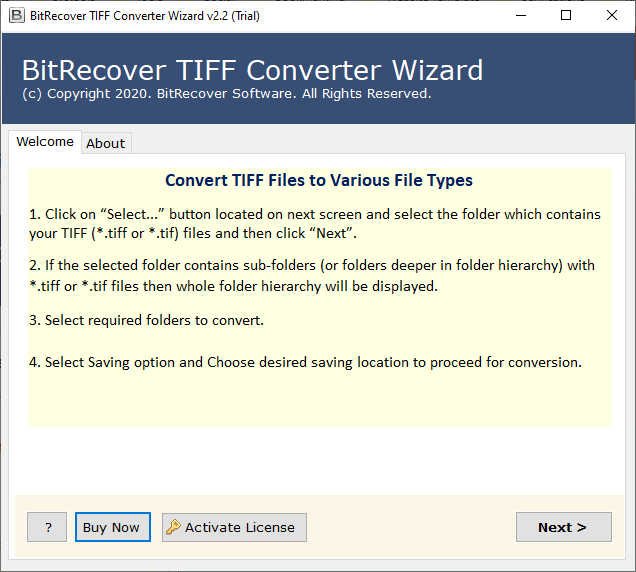
Step 1: Launch the Tool
Install and open Turgs TIFF Converter Wizard. The main window shows the file loading and options panel.
Step 2: Add Your TIFF Files
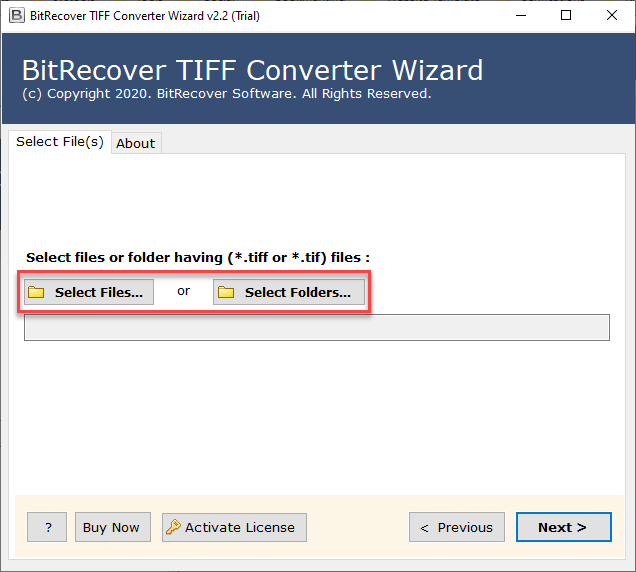
Click the file selection button to add individual TIFF files or select an entire folder. The tool supports TIF and TIFF file extensions and shows a preview of loaded files.
Step 3: Preview Your Images
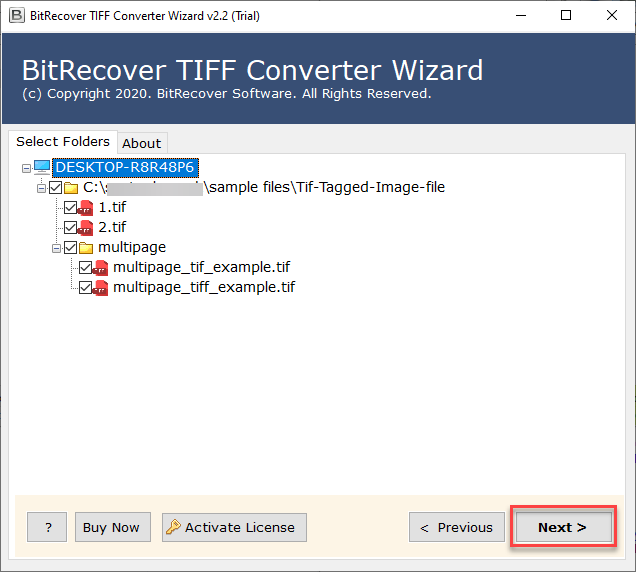
Use the built-in preview to check how your images look before committing to the conversion. This step helps you confirm the right files are selected.
Step 4: Choose GIF as the Output Format
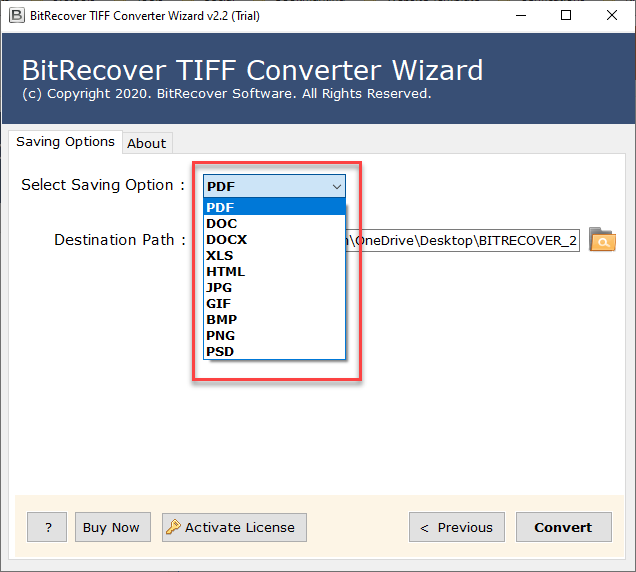
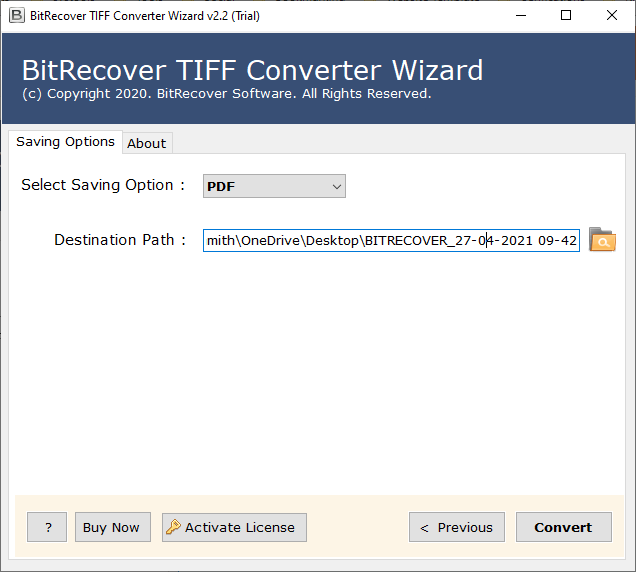
In the saving options, select GIF as your output format. The tool shows format-specific options at this step.
Step 5: Set the Destination Folder
Choose where you want the GIF files saved. You can use an existing folder or create a new one. The default puts files next to the original TIFF files.
Step 6: Start the Conversion
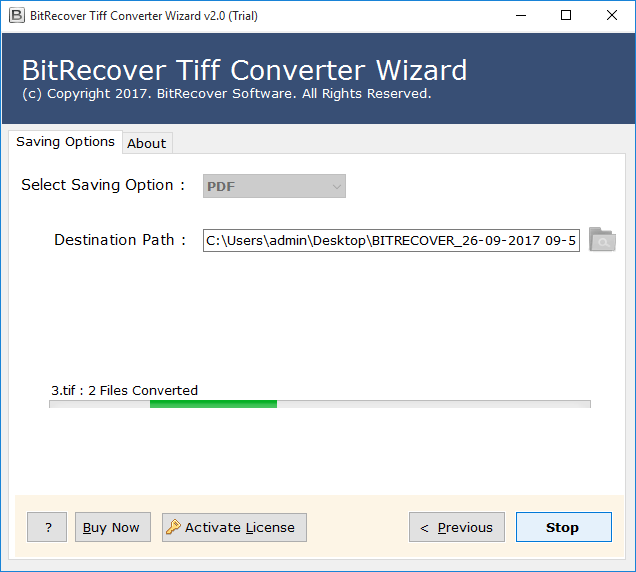
Click the Convert or Start button to begin processing. A progress indicator shows how many files have been completed. A summary appears when the batch is done.
Key Features of Turgs TIFF Converter Wizard
The tool handles TIFF conversion for both individual users and enterprise workflows. Key features include:
- Batch conversion: Convert hundreds or thousands of TIFF files in one operation
- Multiple output formats: GIF, JPG, PNG, BMP, PDF, TIFF to Word and more
- Windows and Mac support: Available for both platforms
- Preview function: Check images before converting to avoid mistakes
- No editing software required: Works without Photoshop or any other image editor
- Folder structure preserved: Output mirrors the input folder hierarchy for organized results
The cross-platform support is a genuine advantage. If you have TIFF files on a Mac but need GIFs for a Windows-based publishing system, you can run the conversion on either machine without compatibility issues. See also the TIFF to PSD converter if you need to convert TIFF files to Photoshop format instead.
Limitations to Know
Limitations
- GIF supports a maximum of 256 colors. TIFF images with rich color gradients or photographic content will lose color fidelity when converted to GIF.
- Multi-page TIFF files may be exported as separate GIF frames or a single flattened image depending on the conversion settings.
- The free trial has a processing limit on the number of files. The full version removes this restriction.
- Very high-resolution TIFF files (300 DPI or above) are downsampled to screen resolution during GIF export since GIF is not designed for print output.
- TIFF files with CMYK color profiles are converted to RGB before the GIF export, which may slightly shift colors.
- Transparent areas in TIFF files may render differently in GIF output since GIF supports only one-bit transparency (fully transparent or fully opaque).
Frequently Asked Questions
Can I create an animated GIF from a multi-page TIFF file?
Multi-page TIFF files (sometimes used in medical imaging and document scanning) can be converted with each page becoming a separate GIF file. Whether the tool creates animated GIFs from multi-page TIFFs depends on the conversion settings. For animated GIF creation from multiple frames, check the tool’s animation export options.
Will the GIF output look the same as the TIFF original?
For images with flat colors, logos and line art, the GIF output looks very similar to the TIFF original. For photographs with many colors and gradients, the 256-color limitation of GIF will produce visible differences. The conversion is not reversible: you cannot recover the original color data from a GIF.
What is the maximum resolution for a GIF output?
GIF does not have a hard resolution limit, but files become very large above certain dimensions. Most web use cases for GIF stay at 800×600 pixels or smaller. If you’re converting large TIFF files (3000+ pixels wide), the GIF output will be large in file size even though the color depth is reduced.
Does the converter work with multi-page TIFF files from scanners?
Yes. Multi-page TIFF files from document scanners are supported. Each page can be exported as a separate GIF file. This is useful for converting scanned document archives from TIFF to a web-friendly format for online document management systems.
Is there a Mac version available?
Yes. Turgs TIFF Converter Wizard is available for both Windows and Mac. The Mac version offers the same conversion capabilities. Download it from the TIFF Converter product page.
Can I use this tool to convert TIFF to other formats besides GIF?
Yes. The same tool converts TIFF files to JPG, PNG, BMP, PDF, Word and more. Select the desired output format in step 4 of the conversion process. If you need TIFF to Word conversion specifically, check out the dedicated TIFF to Word converter guide.