How to Convert TIFF to PDF Safely Without Losing Data?
If you are wondering how to convert TIFF to PDF, then you are in the right place. Here, we will give you all the information on how you can change TIFF file to PDF. Many users prefer their documents in high-quality image format, which is why they convert TIFF to PDF file. because PDF is a universal document format that you can easily share and access on any device. However, TIFF is a widely used image format, but its file size is large and can be difficult to share. That’s why converting TIF to PDF file is a better choice since PDF is lightweight, universally supported, and 100% secure.
In this blog, we will be talking about how to convert TIFF to PDF format straightforwardly. You need an easy way to transform your TIFF file to format that is compatible enough to hold your data file. Your data’s security is what we prioritize the most, and we have come up with the best solution to batch convert TIFF to PDF without facing any errors. Before discussing the solution, let’s explore the benefits of the conversion.
Advantages to Convert TIF to PDF File:
- PDF can be accessed easily on any device or platform.
- In PDF format, your document layout remains safe.
- PDF offers a compression option that reduces the size of your TIFF file.
- PDF can be easily shared via cloud storage, email, and various messaging apps.
- You can apply password protection and encryption to PDF.
To complete this conversion, we have the best solution for you, and we have shared all its details below. Without wasting any time, let’s get started.
How to Convert TIFF to PDF in Bulk Professionally
If you want to convert multipage TIFF to PDF, we suggest using the Trugs TIFF Converter. With this tool, you can easily convert TIFF to PDF file, and it offers you many advanced features that allow you to complete your convert multipage TIFF to PDF tasks within minutes. Using its advanced options, you can also bulk convert your TIFF files into PDF.
This tool comes with a free trial version, which you can use to test its features and see how it works. If you face any issues while trying to change TIFF file to PDF, you can contact their support team, which is available 24/7 to assist you. Now, let’s see how to batch convert TIFF to PDF.
How to Use this TIFF to PDF Converter
- Firstly, install the converter tool on your system.
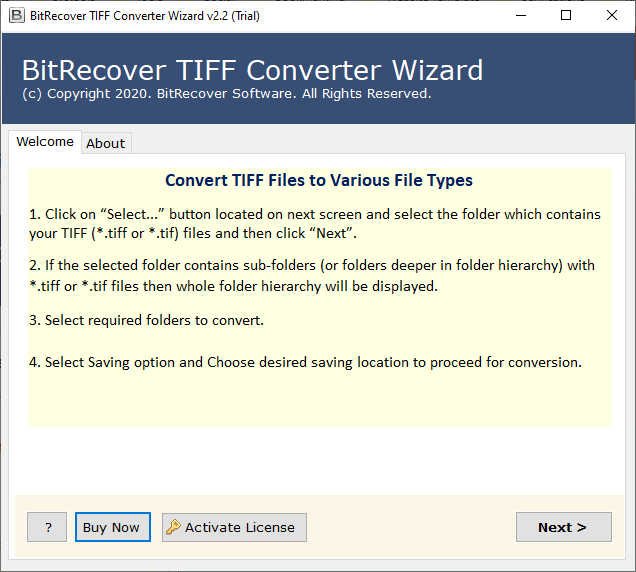
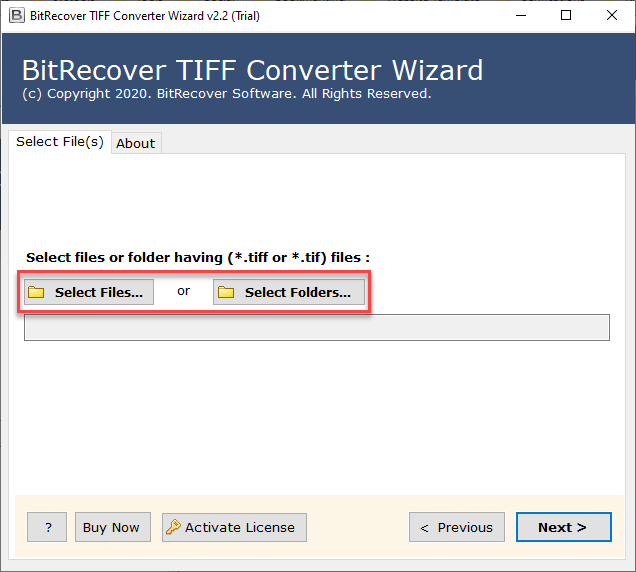
- Then choose the dual option to upload TIFF data files.
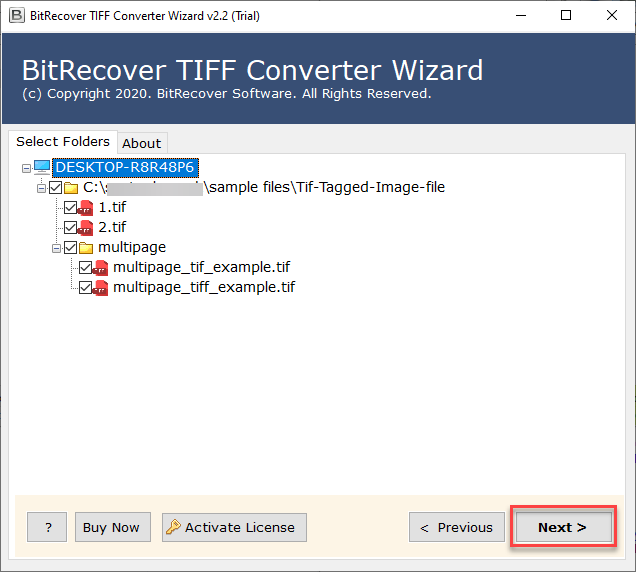
- Now, check and uncheck your uploaded data files.
- Next, choose PDF as the saving option.
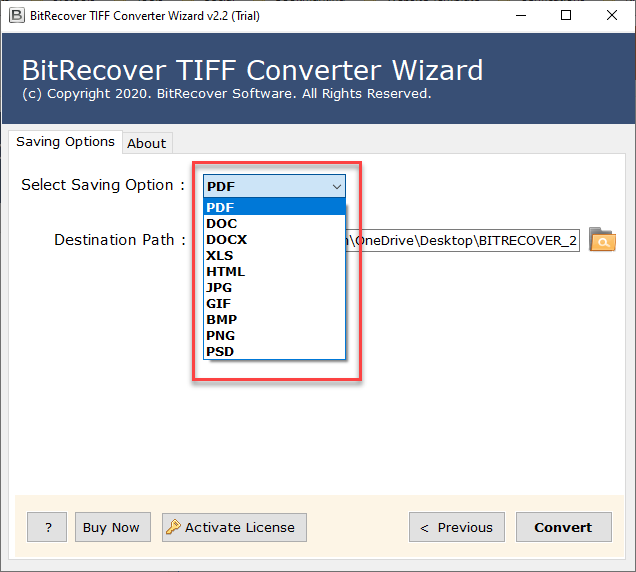
- After that, select the destination path to save the resultant data.
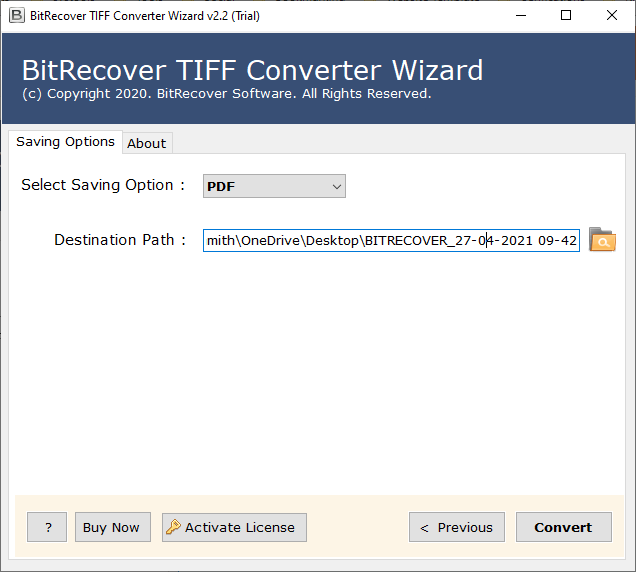
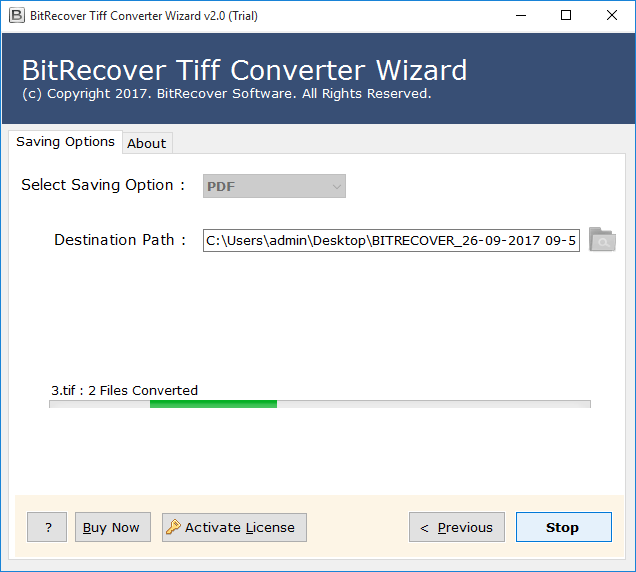
- Lastly, click on the convert button to complete the process.
Features of Using This Tool to Change TIFF File to PDF
- Offers dual options to upload data files as well as folders with the Select Folder and Select Files options.
- It is a standalone tool to convert TIFF to PDF all by itself, independently
- Maintains the originality and integrity of your entire data seamlessly
- Keeps your entire uploaded TIFF files safe and secure throughout the process
- Allows you to print your TIFF image data easily in high quality for multiple uses.
- Allows you to create a separate PDF file for each of your TIFF data file as per your needs.
Conclusion
To convert TIFF to PDF file, we need the software that we have just discussed above. This process does not require any kind of technical knowledge, and both professionals and beginners can use it. If you still have any queries related to this topic, you can contact the support team. You can use advanced features to perform your batch convert TIFF to PDF.