Why Convert TIFF to PSD in Bulk? Best Methods Explained
TIFF files are useful for storing scanned images, medical records, contracts, and high-resolution images. The problem with TIFF files is that they save as a flat image, which is not the best format for designers or editors to use in Photoshop. This means if you try to open a file in Photoshop, it will shut down without converting. This is why it is necessary to convert TIFF to PSD.
When you use a TIFF to PSD converter, you can quickly unlock TIFF images that are editable within Photoshop if done correctly and with quality. No matter if you are a designer, a photographer, or someone who deals with only scanned documents, converting TIFF to PSD is going to help you gain control over editing, layers, and effects.
What are the Benefits of Convert TIFF to PSD?
- Editability within Photoshop: TIFF images are flat, but PSD allows you to edit layers, effects, and anything you want to change after the fact.
- Keeping the quality: If you use a TIFF to PSD converter, you can maintain the resolution.
- More manageable files: PSD files tend to be far easier to manage than a bulky TIFF image.
- More creative options and flexibility: PSD is Photoshop’s native format, allowing you to utilize advanced editing options.
- Better options for sharing: PSD files are typically a format that designers and agencies prefer to have for collaborative efforts.
How to Convert TIFF to PSD with Photoshop
If you already have Photoshop on your computer, you can use it to convert TIFF to PSD directly:
- To begin, open Adobe Photoshop on your device.
- Then, go to File > Open, and select your TIFF image.
- After the file opens, you may make edits before saving.
- Next, go to File > Save As.
- Now, from the dropdown list, select PSD (Photoshop Document) as the format.
- Lastly, select a destination folder, and save.
This manual way is fine for a few files, but it may be slower and less productive to convert TIFF to PSD manually if there are many TIFF files to convert.
Drawbacks of Converting TIFF to PSD Manually
Photoshop will convert a TIFF to PSD. However, the manual conversion method may have limitations:
- Only works with single TIFFs.
- Slow for many TIFFs.
- Assumes you have an advanced user-level knowledge of Photoshop.
- Depending on how the saving is completed, there is a possibility of inconsistency and a loss of quality.
Because manual TIFF to PSD conversion has many limitations, professionals often prefer an automated TIFF to PSD converter for speed and efficiency
A Professional Method for Converting TIFF to PSD
The best method to convert TIFF to PSD files is through a professional TIFF Converter. This tool frees you from headaches, speeds things up, and allows for accuracy without needing to be a technical wizard. This type of converter allows you to do bulk conversions, which means to convert multiple TIFF images into PSD files at once with no issues regarding quality, resolution, or formats.
With a few clicks, your TIFF files will convert to editable PSD documents as if you created them in Photoshop directly. This type of converter will save you time and, most importantly, accuracy. The original image will be intact, and you will be able to manage large quantities of images with ease. For anyone looking for speed and consistent results, this is the best way to manage TIFF to PSD conversion.
Steps to Convert TIFF to PSD
The simplest way to change TIFF to PSD is by using a professional TIFF to PSD converter. It supports single or bulk files, making the process fast, safe, and high-quality.
- Download and install the TIFF to PSD converter on your device.
- Add your TIFF images using the Select Files or Select Folders option.
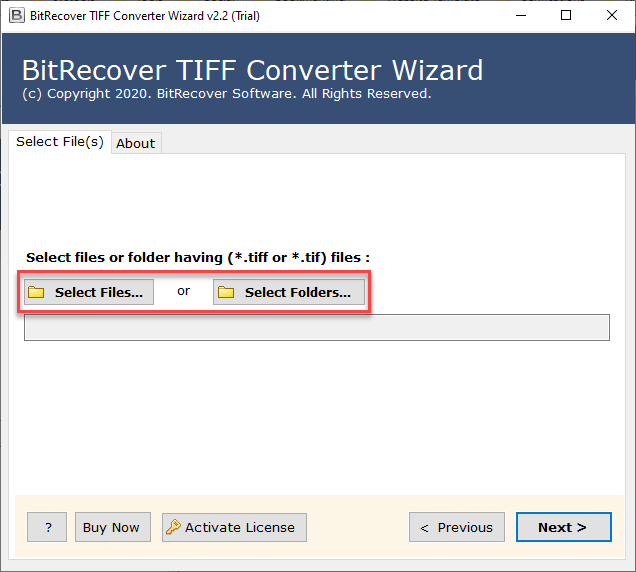
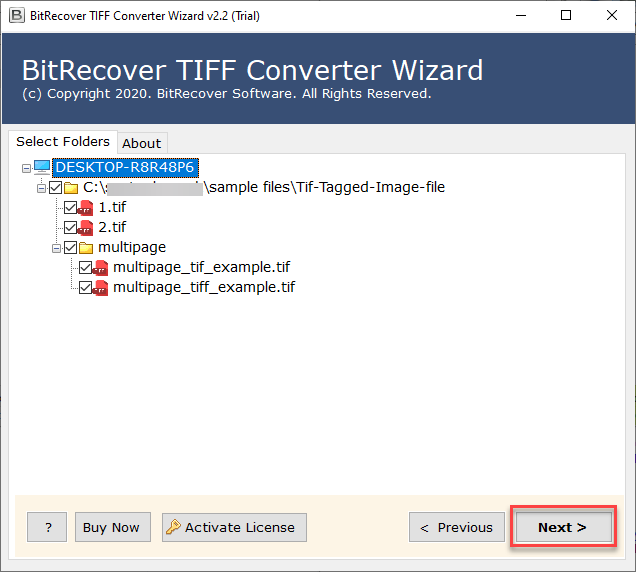
- Check or uncheck your uploaded files before processing.
- Choose PSD (Photoshop Document) as the output format.
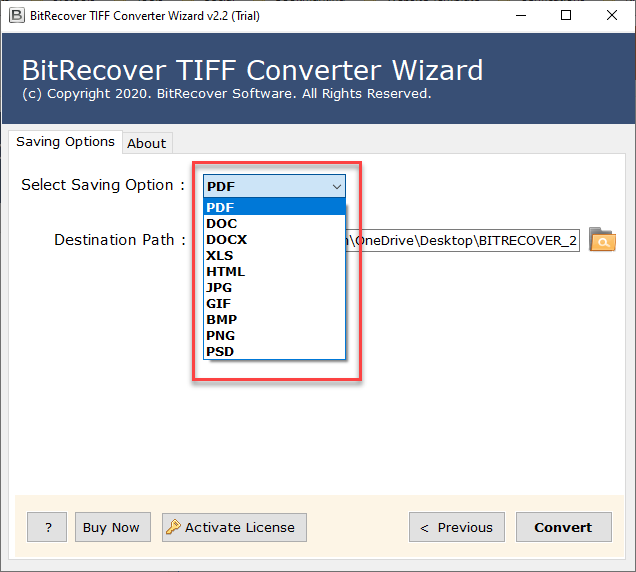
- Select your preferred destination folder for saving the converted files.
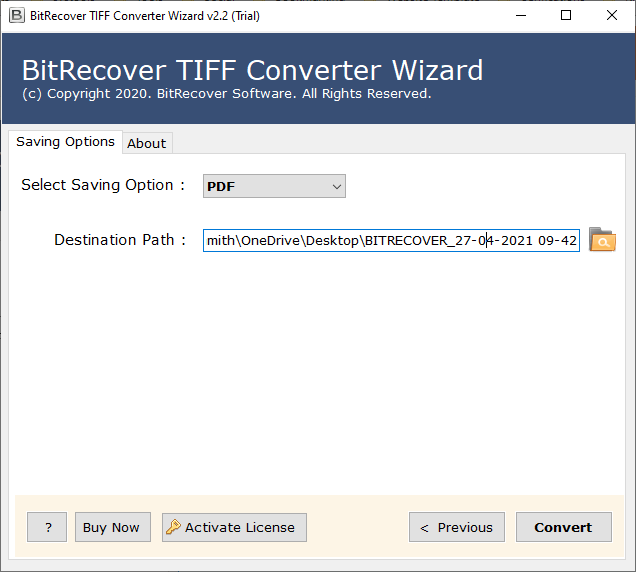
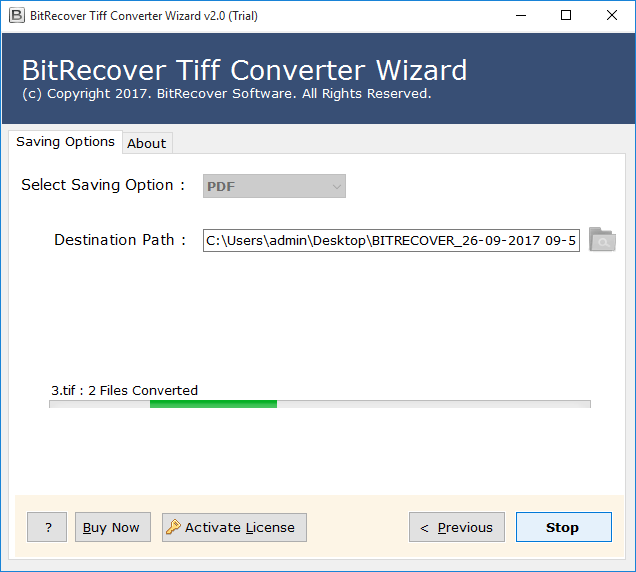
- Finally, click on the Convert button to begin the process.
Advantages of Using This Software to Convert TIFF to PSD
- A dependable, trustworthy process to convert TIFF to PSD without degradation in quality.
- Works singularly as a TIFF to PSD converter, without the need for any other applications.
- Allows the uploading of TIFF files in either of two options: Select File (a singular file) or Select Folder (in bulk).
- Has a preview option so you can check for accuracy before converting.
- Converts TIFF to PSD while keeping the image clarity, resolution, and formatting intact.
- Allows single and bulk TIFF to PSD conversions to create the most efficient time savings.
- Professional-level features Ensure speed, accuracy, and all the controls you need on the output.
This really makes it one of the most reliable options for anyone who has been asking how to convert TIFF to PSD quickly and efficiently.
Conclusion
The best way to deal with high-quality scanned images or designs is to convert TIFF to PSD. Photoshop may be able to import a few of these files manually, but using a professional TIFF to PSD converter for batch jobs is far better. Not only is it fast, precise, and efficient, but it’s also ideal for photographers and designers and other professionals who need totally editable PSD files to give them complete control and flexibility.
Read More: Convert TIFF to BMP