How to Export OneNote Notes to HTML Without Hassle?
If you are also thinking about convert OneNote to HTML, then you’ve come to the right place. Here, we will provide you with comprehensive information on Export OneNote page to HTML, allowing you to convert OneNote page to HTML format easily.
In this blog, we have shared multiple methods with you that will help you perform the conversion smoothly. We have included both manual and professional methods so that you can clearly understand the process while reading carefully. So, without wasting any more time, let’s begin and find out how you can easily convert OneNote to HTML without any data loss.
What are OneNote and HTML Files?
OneNote: OneNote is Microsoft’s digital notebook where you can keep notes, images, audio, and documents. It saves files in formats like .one, which only open in OneNote.
HTML: HyperText Markup Language is the standard language used to create web pages. HTML files are saved as .html and can be opened in any browser.
What are the Benefits of Converting OneNote to HTML?
- OneNote users want to export to HTML because it makes their notes more available and simpler to share. OneNote files cannot be opened without the app, but HTML files can be opened in any web browser, allowing viewing on any device; no other application can be installed.
- HTML is also your best option if you plan to publish your notes on the internet or send your notes to others who do not have OneNote. HTML is lightweight, secure, and can be opened on any platform, including Windows, Mac, and mobile devices. In short, exporting OneNote to HTML gives more freedom to share, no software limitations, and ease of access.
How to Convert OneNote to HTML Manually?
- Firstly, open OneNote app and open the page or notebook you want to convert.
- Secondly, go to the file, then click on the export button.
- Now, click on the file and select Export.
- Next, choose Section, page, or Notebook.
- After that, choose the .html file format.
- Lastly, save your file, and your OneNote file is now in HTML format.
Read Next: Export OneNote to Word
Limitations of this Manual Method
- Time-Consuming: You can only export one page or section at a time, so converting large notebooks takes a lot of time.
- Requires OneNote: You must have OneNote installed on your system to use this manual method.
- No Bulk Export: There’s no option to convert multiple notebooks at once.
- Formatting Issues: Some images, text, or tables may not look the same in HTML format.
Export OneNote to HTML Using Automated Way
The easiest way to convert OneNote to HTML is to use a professional OneNote Converter. The product allows you to simply export OneNote pages to HTML, even in bulk, saving you valuable time and effort. It retains all your text, images, and formatting as well to make sure nothing is lost in the conversion. Whether it’s one page or a whole notebook, you can simply change OneNote to HTML and then share your notes online or between devices without any hassle.
The software is also easy to use, so even those with no technical experience will be able to export OneNote to HTML. It manages large files seamlessly, making it great for students, professionals, or teams. Nevertheless, it ensures consistency between converted pages, so notes look organized and professional.
How to Use This Software?
- Firstly, download the converter on your system.
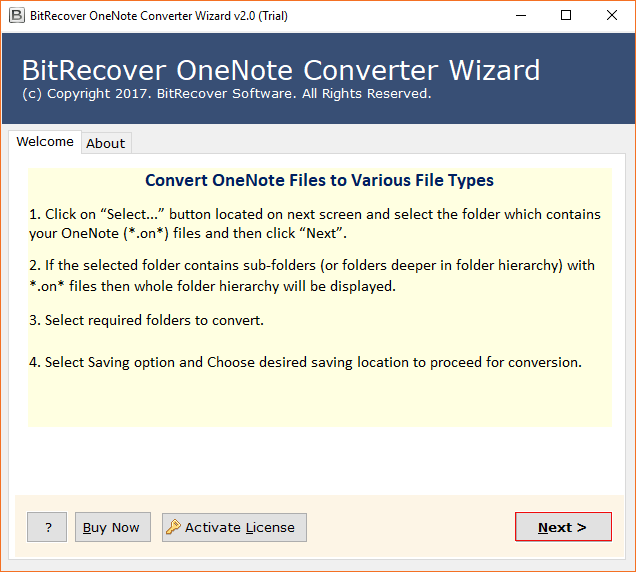
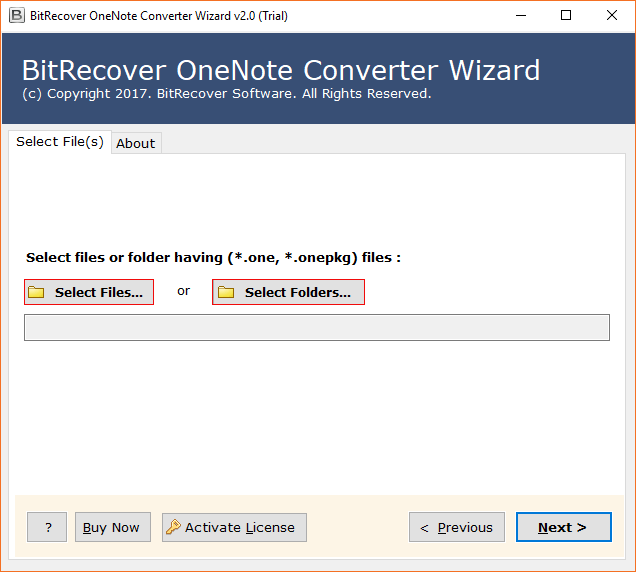
- Secondly, upload data using Select Files or Select Folders.
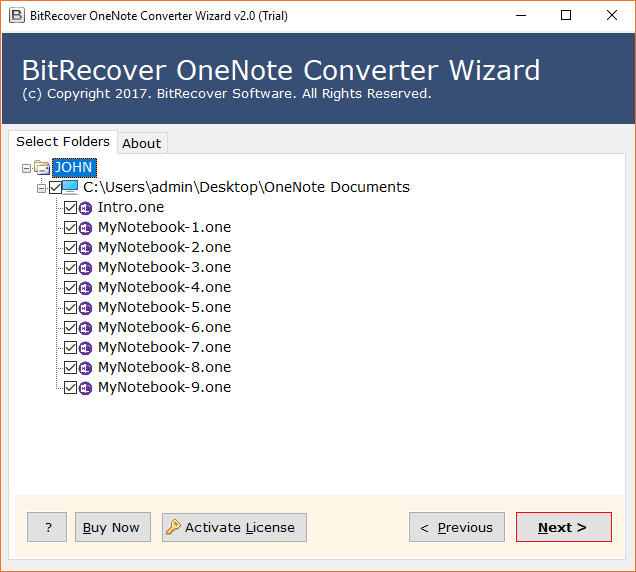
- Thirdly, preview the OneNote files before conversion.
- After that, choose .html as the output format to convert OneNote to HTML.
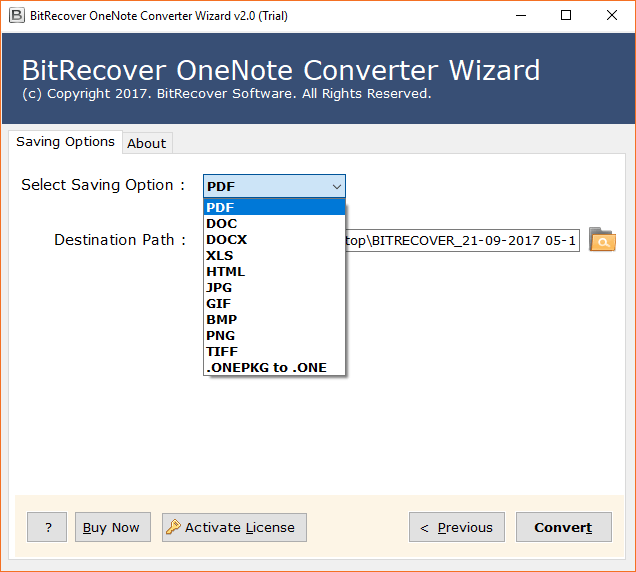
- Now, select the destination location and click on Convert.
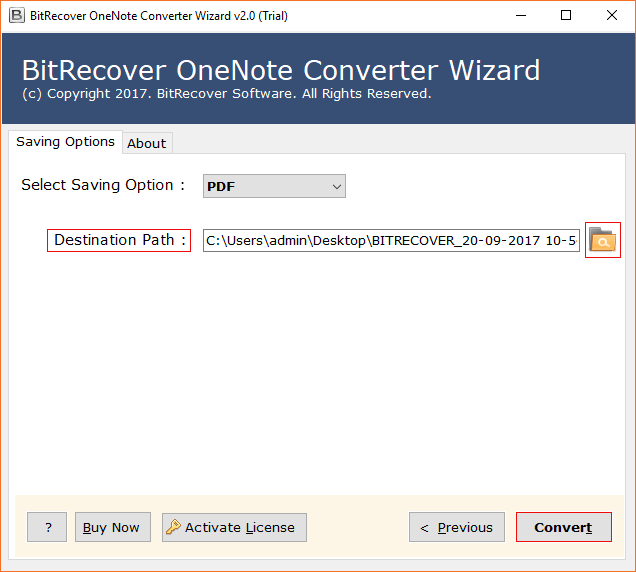
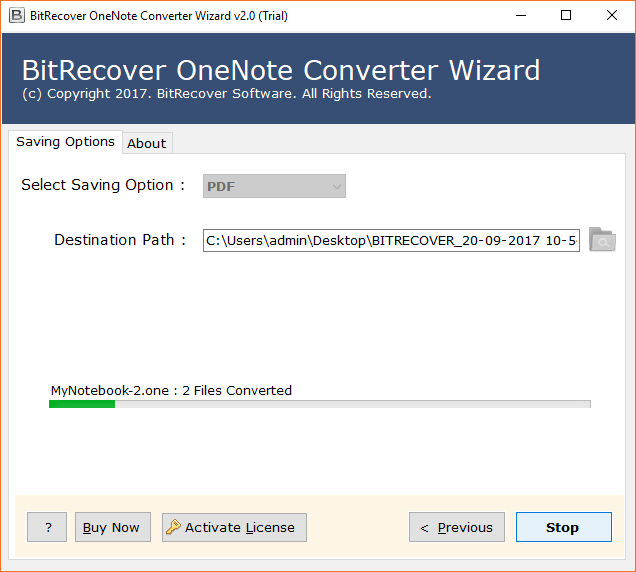
- Once the process is done, you can access your converted HTML files.
Main Feature of This OneNote to HTML Converter
- It allows you to convert OneNote to HTML for a single page, section, or entire notebook without losing any data.
- Supports batch processing, allowing you to export OneNote pages to HTML all at once.
- Maintains the originality of all formatting and layout, along with the structure of your OneNote files.
- Provide a safe, reliable, and accurate way to export OneNote to HTML, ensuring consistent results with no data loss.
- Allows you to choose the destination folder for your new HTML files.
- A standalone tool that automatically handles the entire process, making it easy to convert OneNote to HTML even for beginners.
- Keeps your notes, images, tables, and multimedia intact during the conversion.
Conclusion
You can Export OneNote to HTML manually or automatically, but the risk of losing data is higher with manual conversion. It is far safer to convert OneNote to HTML using a professional OneNote to HTML converter, as these tools produce accurate, error-free exports. A professional tool will save time, allow you to export OneNote pages to HTML in batches, and maintain the original formatting. In addition, should you have any issues, there is 24/7 support available.
Read More: Export OneNote to Excel