Easy Way to Export OneNote to PDF: Step-by-Step Guide
If you want to export OneNote to PDF, you have come to the right place. Here, we will give you complete information on how to export an entire OneNote notebook to PDF. As you know, PDF is a universal file format that can be accessed on any device and is also widely accepted for legal purposes. Many students, organizations, and professionals prefer saving their OneNote notebooks in PDF format to make sharing and printing easier.
OneNote is an amazing note-taking application that allows you to store images, tables, text, and drawings in one place. However, sometimes you need to export OneNote to PDF format, for example, for offline backup, report submission, or client presentations.
In this article, we will show you some easy methods to convert OneNote to PDF without any hassle, along with all the details related to the conversion process. So, let’s get started.
Why Do You Need to Export OneNote to PDF?
- You can easily share your OneNote file with anyone if you convert OneNote to PDF because the PDF format is accessible on any device.
- You can create a PDF to access your notes offline anytime.
- PDF gives you high-quality printing if you convert OneNote to PDF.
- You can also add a password to your PDF to keep your sensitive information secure.
Method: 1 Convert OneNote to PDF Professionally
If you want to export OneNote to PDF and need good results in less time, then without any second thought, you can use the Turgs OneNote to PDF Converter Tool. With the help of this tool, you can complete your convert OneNote to PDF within just a few minutes. Users highly prefer this tool because it doesn’t just convert OneNote to PDF; it also offers many additional features to ensure that no errors occur during the process.
Some advanced features of this software allow you to convert OneNote to PDF in bulk, making it perfect for handling large amounts of data. One of the best things about this software is that it offers a trial version, so you can test how the tool works before purchasing. By using the trial version, you can convert up to 5 OneNote files to PDF for free. Here’s how you can do it: just follow the steps given below to export OneNote to PDF effortlessly.
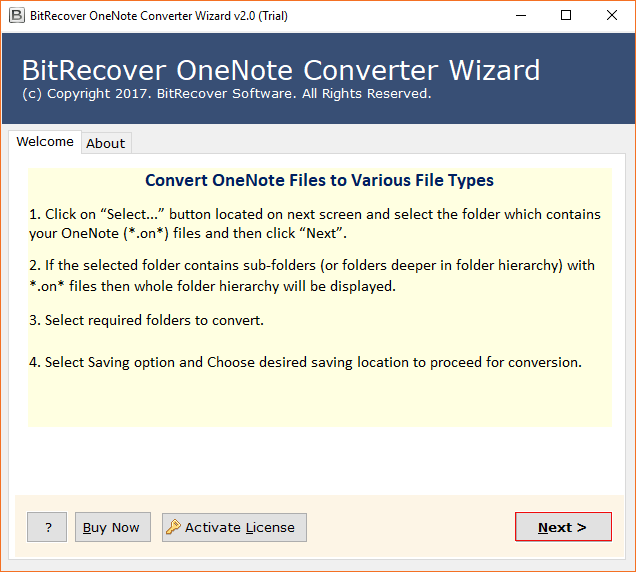
- First of all, install the converter software on your device.
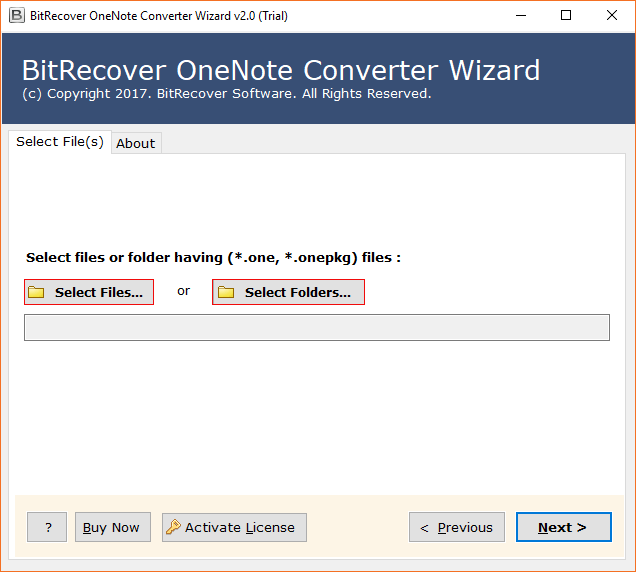
- Choose “select files” or “select folders” from the given dual options to upload your note files.
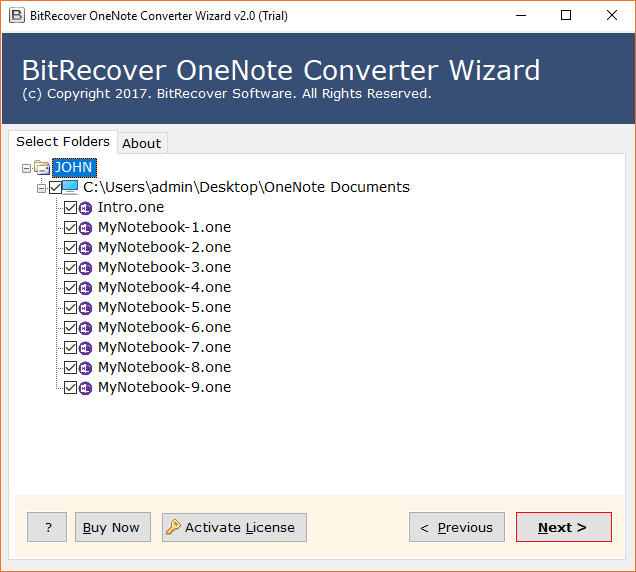
- Now, preview the OneNote data, and you can also remove any data that you have mistakenly added into the panel.
- Now choose the PDF format from the given select saving options list.
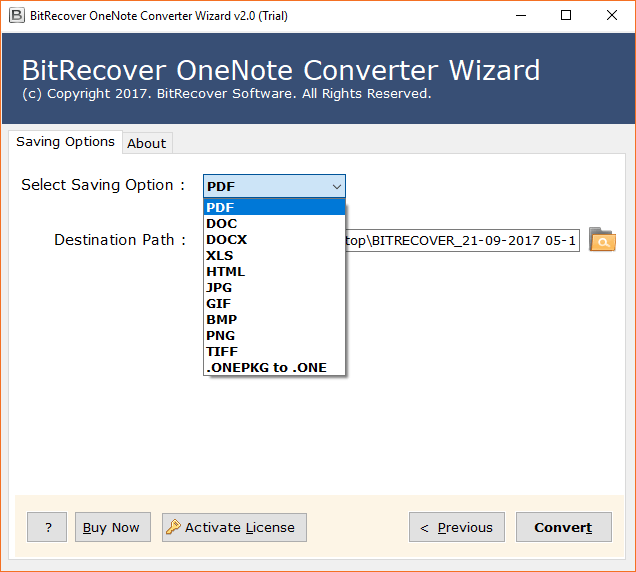
- Then click on the browse icon and choose the destination path where you want to save your converted OneNote files.
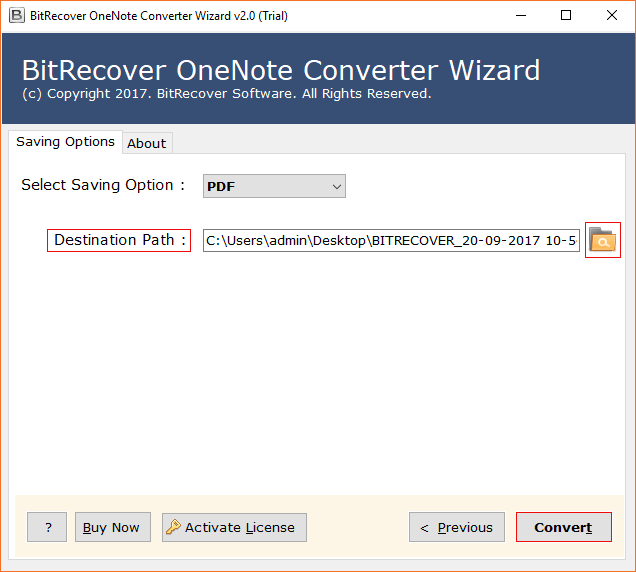
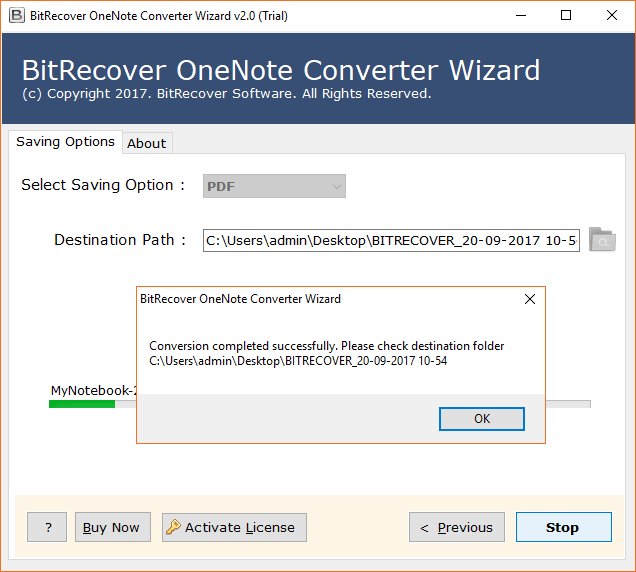
- Lastly, tap on the convert button to start the process. You will be notified once done.
An Advanced Feature of This Onenote to PDF Converter
- This feature allows you to bulk export OneNote to PDF when you have a large amount of OneNote data.
- This solution is standalone, which means it can complete your export from OneNote to PDF or convert OneNote to PDF process easily without requiring any other applications.
- This tool offers multiple features that let you selectively convert OneNote to PDF for only the required sections.
- The software is 100% reliable and a trusted solution, recommended by IT experts for users who want a fast and secure export entire OneNote notebook to PDF process.
- After exporting OneNote to PDF, your formatting and layout remain exactly the same.
- It also maintains the originality of your data so that your images, text, and drawings appear exactly the same in the PDF.
Method: 2 Convert OneNote to PDF Manually
- Firstly, open OneNote notes on your system.
- Then select the page that you want to export
- Click on the File, then tap on Export.
- Now go to export current and choose PDF
- Now, in the Save as box, select a location to save your file.
- Name your file and click on the Save button.
Limitations of Using this Method to Export OneNote to PDF
Using this method can be time-consuming, and if you have a large amount of OneNote data, it does not provide an efficient option to export the OneNote notebook to PDF. It also does not ensure that the entire process can be completed according to your needs and preferences, and if the data size is large, there is also a risk of data loss. In such cases, it is better to use secure and reliable software to export entire OneNote notebook to PDF.
Conclusion
In conclusion, you can easily export OneNote to PDF using the best method we have mentioned above. The manual method has certain restrictions, which is why we recommend using this professional tool, as it allows you to export the entire OneNote notebook to PDF quickly, securely, and with excellent results.