How to Export OneNote to Word Safely? Step-by-Step Guide
If you want to export your OneNote content to Word, then this blog is just for you. In this blog, we will give you a complete solution and explain some easy methods to export OneNote to Word without changing the formatting or losing any data. You will be able to convert OneNote to Word with ease.
- Reasons to Export OneNote to Word
- Differences Between OneNote and Word File
- Export OneNote to Word Using OneNote Application
- Export OneNote to Word Using OneNote Web
- Best Way to Export OneNote to Word
- How to Export OneNote to Word Professionally?
- Benefits of Using OneNote to Word Converter
- Conclusion
Whether you are a Mac user or a Windows user, this guide will provide you with a step-by-step process where attachments, formatting, and layout remain exactly the same without any changes. You can export OneNote to Word without facing any problems. So, let’s get started without wasting time and learn from this blog how to convert OneNote to Word easily.
Why Do Users Need to Export OneNote to Word?
OneNote is a note-taking application where you can store text, images, tables, and many attachments. However, often we need to convert our notes to MS Word (.docx) format for reasons such as:
- Exporting to Word allows you to create a clean, printable version of your notes.
- Many users do not have OneNote installed; if you export to Word, anyone can open the file in Microsoft Word or Google Docs without extra software.
- If you need to convert your notes into a formal report or article, Word is the best choice.
What Are the Differences Between OneNote and Word File Formats?
- OneNote (.one file): Microsoft’s digital notebook format in which notes are stored in sections and pages. It can store images, audio, text, tables, and even videos.
- Word (.doc/.docx file): Microsoft Word’s document format which is widely used for framing the text documents. It offers advanced formatting options and supports easy printing and sharing.
How to Export OneNote to Word Using OneNote Application
- First of all, open OneNote on your system.
- Secondly, open the notebook or the page that you desire to export.
- Now, click on the File and then click on the Export button.
- Next, in the Export type section, select the Page / Section / Notebook.
- After that, in the Export format, select Word (.docx).
- Lastly, choose the Save As location and tap on the Save button.
How to Export OneNote to Word Using OneNote Web?
- First, access OneNote Online in your browser.
- Then, sign in with your Microsoft account.
- Next, open the notebook and press Ctrl + A to select everything.
- After that, press Ctrl + C to copy all the content and paste it into a Word document.
- Finally, save the file.
Drawbacks to Using This Method
The methods we have explained above for exporting OneNote to Word are correct, but before applying them, you need to keep a few things in mind because these methods have some limitations, such as:
- To export OneNote to Word, it is necessary to have OneNote installed on your device.
- If you have a small amount of data, you can use this method, but if you need to export large notebooks, this method is not very suitable.
- In this process, you will have to export each page/section separately; you cannot export all files at once.
- If you are exporting OneNote to Word, having technical knowledge is very important.
- In this method, the formatting of your attachments may change.
How to Export OneNote to Word Professionally?
As you have just read, the two methods mentioned above have certain limitations that may cause problems when you try to convert Turgs OneNote Converter. However, we have provided you with the best OneNote to Word solution, where the entire export process will be fully automated. This means you won’t face any issues, and you’ll get excellent results in less time and with minimal effort. With the help of this tool, you can convert OneNote to Word in just a few minutes without worrying about data loss.
The tool also offers several advanced features, allowing you to easily export OneNote to Word. For example, you can export all files at once, and later, if you want to remove any file, you can use that tool. If you face any problems while using this tool, our support team is available 24/7 to help you find a solution. Below, we have explained the steps to export OneNote to Word using this process. So without any delay, let’s get started.
- First of all, download the converter tool on your device.
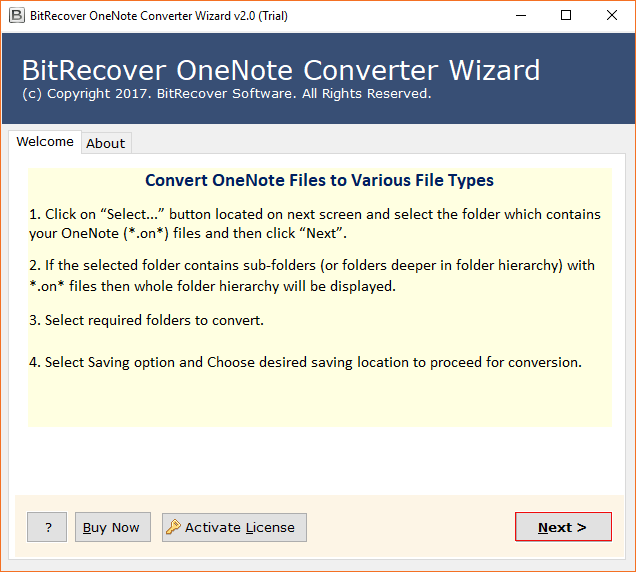
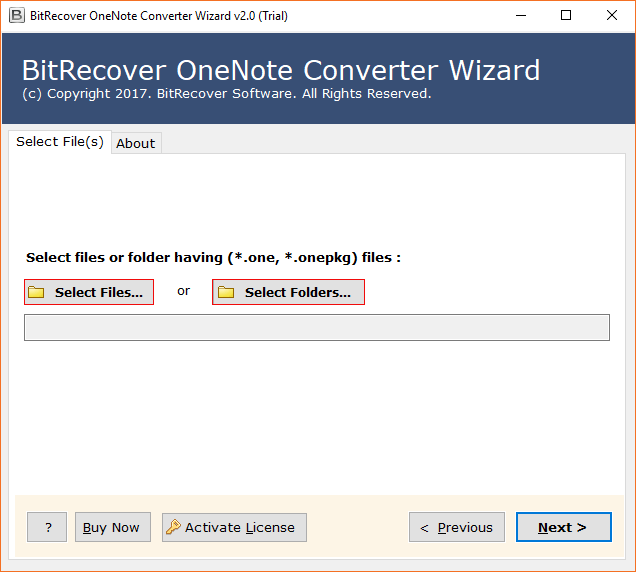
- Next, select the dual options to upload OneNote data files.
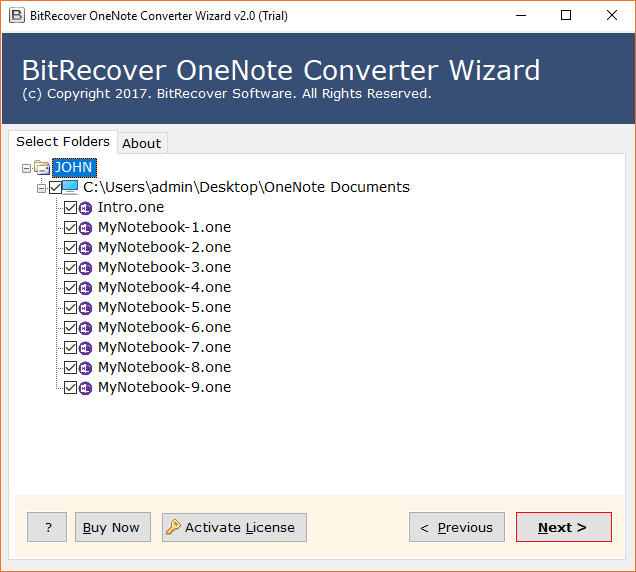
- Then preview your uploaded data.
- Now choose Word as the saving option.
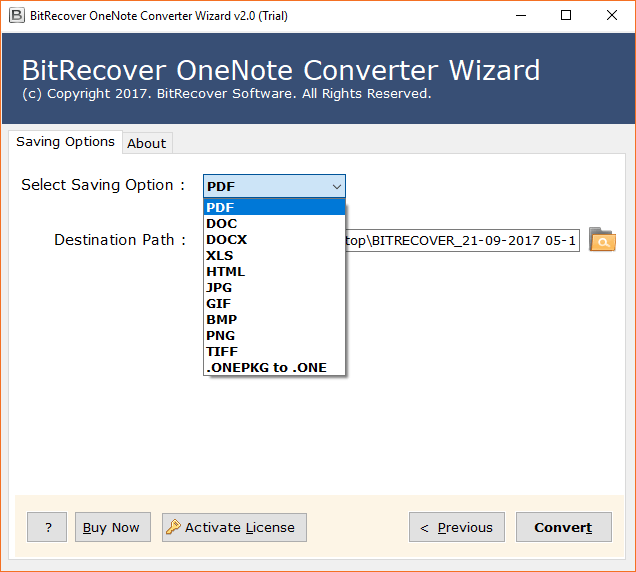
- Then choose the destination path to save your resultant data.
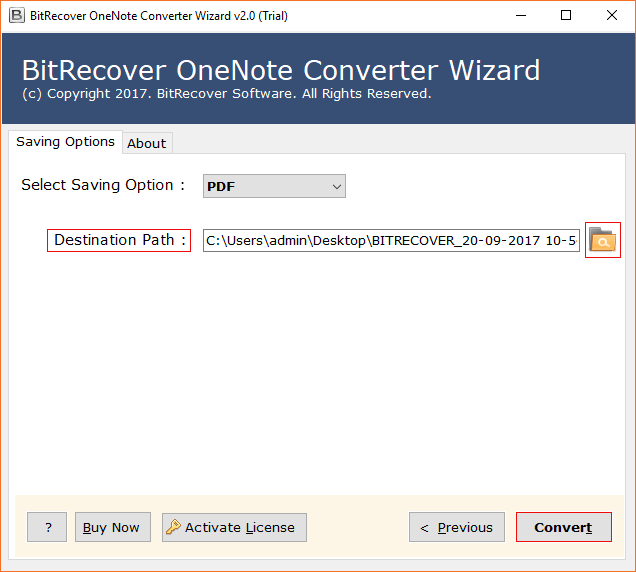
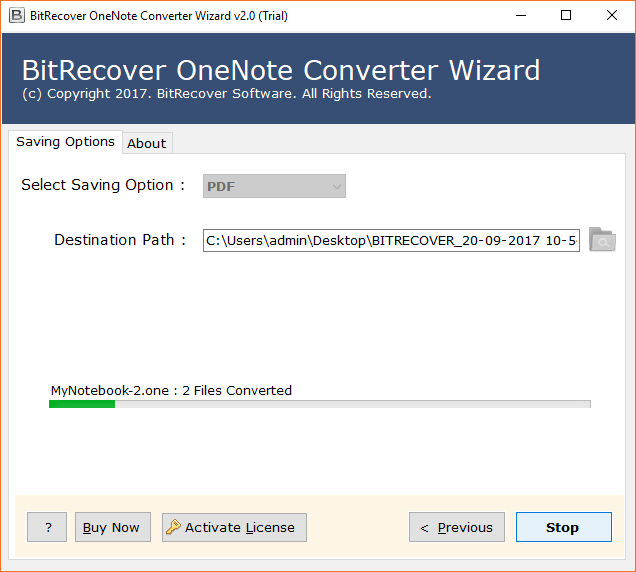
- At the end, tap on the convert button to complete the entire process.
Benefits of Using This Tool to Convert OneNote to Word
- It is one of the most trusted and reliable solutions to easily export OneNote to Word.
- A standalone solution that works independently to convert your OneNote data all by itself.
- Offers dual options Select File and Select Folder to upload your notes data as per requirements.
- Allows you to preview all the uploaded data to have a careful and accurate conversion.
- Offers multiple advanced features that help to convert data very quickly and easily.
- Keeps your entire OneNote notes data safe and secure throughout the whole process.
Conclusion
If you want to export OneNote to Word, you can use the manual method. However, if you want to export large notebook files in bulk from OneNote to Word, then you should use a professional tool. This will save you time and effort, and you can easily convert OneNote to Word. Give it a try and effortlessly share or print your notes in Word format.