How to Export OneNote to HTML Easily & Hassle Free? Solved!
If you’re looking for a simple way to export OneNote to HTML, you’ve come to the right spot. In this article, we’ll provide full details to help you go from OneNote to HTML with ease. HTML (HyperText Markup Language) is a universal format for the web, and it is widely supported by all browsers and platforms.
To convert OneNote to HTML allows you to access the notes directly in the web browser, share the HTML online, or use the HTML as embedded content within websites and documentation. Microsoft OneNote is a great tool to keep and manage notes, and for keeping text, images, drawings, and tables in one accessible place, but there are times when export OneNote to HTML or converting the entire notebook to HTML can be useful, such as for online publishing, project documentation, or easy sharing.
Why Would You Want to Export OneNote to HTML?
- Cross-platform access: Once you export OneNote to HTML, you are able to open it anywhere on your browser without needing to have OneNote kept on the computer you are using.
- Greater Web Compatibility: With HTML format, you can share or publish your notes online or embed them into your online web log.
- Lightweight File Format: Export OneNote to HTML, which allows you to limit your dependency on OneNote or any Office applications.
- Flexible sharing: HTML files can be compressed, transferred, which creates options for online sharing or hosting, and instant access to notes.
- Retain Formatting: If done correctly, your notes will look like they did in OneNote, including your original layout, images, and tables.
Learning the basics of OneNote and HTML?
- OneNote: OneNote is a Microsoft digital note-taking app. Text, images, and drawings are stored in proprietary formats. People can share their notes with others outside the organization by export OneNote to HTML efficiently.
- HTML: comes up in Web Designing. HTML is a standard web format that opens in any web browser and expected format to develop web content. OneNote Convert to HTML or Export OneNote Page to HTML, the notes become accessible, portable, and web-friendly.
Method 1: Convert OneNote to HTML Using a Professional Tool
To export OneNote to HTML, you need a secure and reliable solution. OneNote Converter is the best tool to quickly convert OneNote to HTML while keeping your formatting, images, and notes intact. It offers a wide range of features that make it simple to export OneNote page to HTML or even convert an entire notebook to HTML format.
This powerful solution streamlines the process, making it easy to access your notes in any browser. By using this tool, you can effortlessly achieve accurate results and many professionals recommend it as the most secure way to convert OneNote to HTML and share your notes online.
How to Use this Quick Tool?
- First of all, download the Converter on your system.
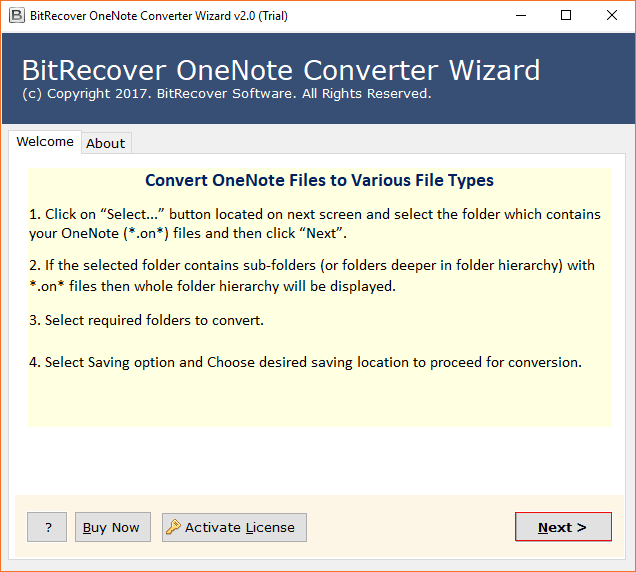
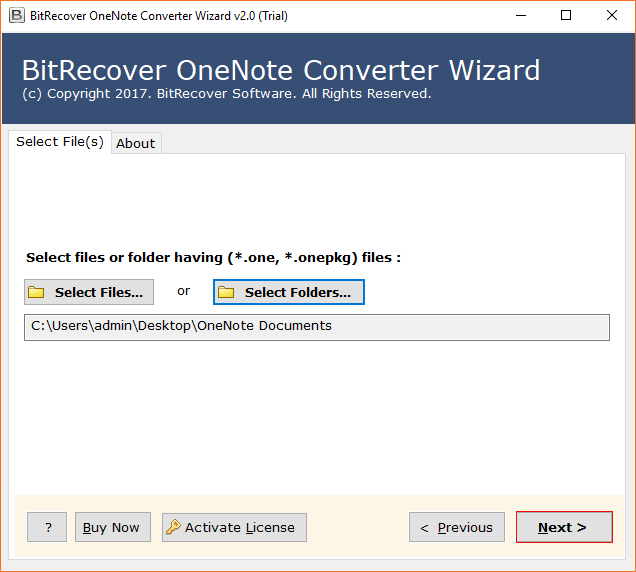
- Click on Select Files or Select Folders to browse and upload your OneNote files.
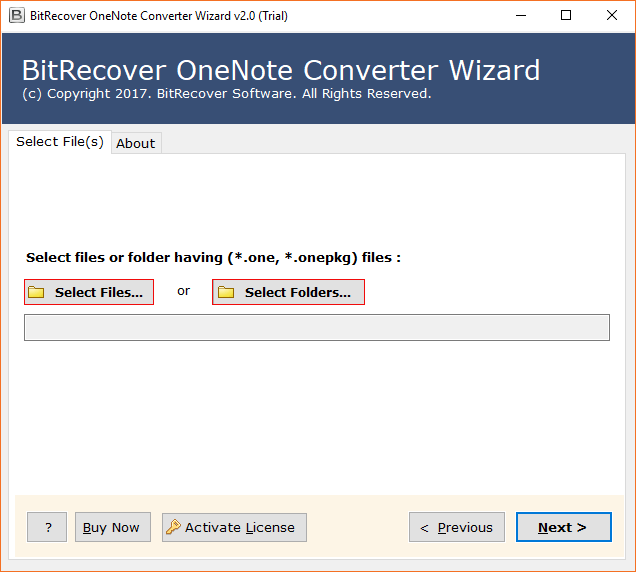
- Then, preview the uploaded data carefully.
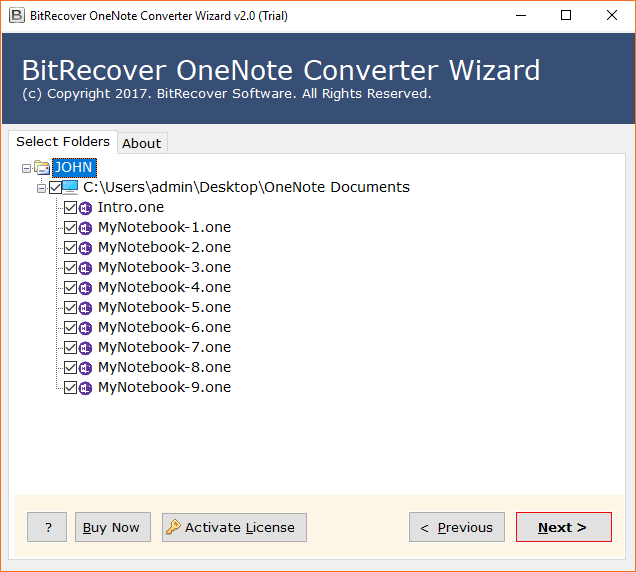
- Choose HTML in the saving options.
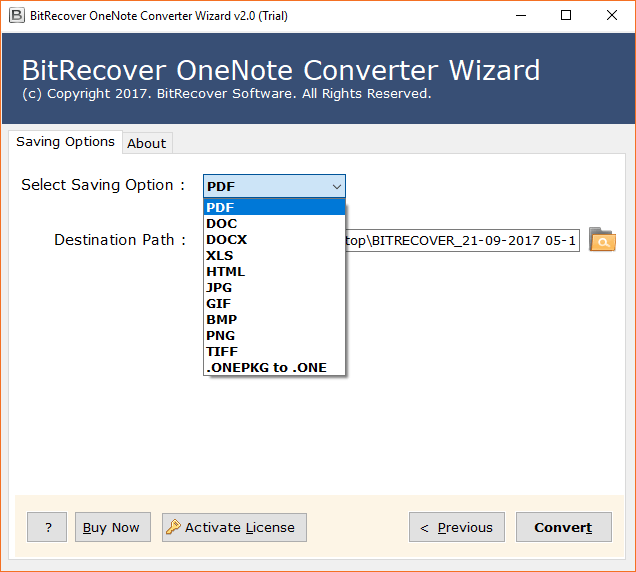
- Click on Browse and select the destination path for saving converted files.
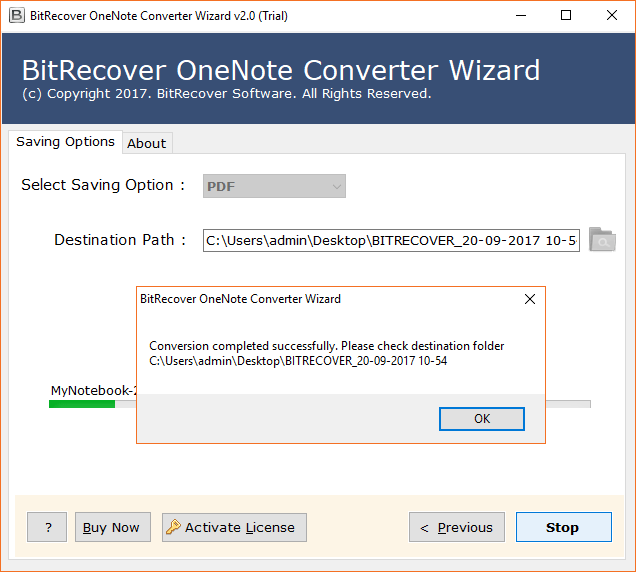
- Click on the export button. Once done, you will be notified.
The Best Prime Features of Using this Software
- Bulk Conversion: Export multiple OneNote notebooks to HTML at once.
- Standalone Solution: Works without OneNote or Outlook installation.
- Selective Conversion: Pick the pages or sections to convert.
- Keeps Formatting: Keeps your text, images, and layout (exactly as in OneNote).
- Secure & Reliable: A trusted professional tool that completes a fast and safe conversion.
Method 2: Manual Conversion of OneNote to HTML
- Open your OneNote application and navigate to the note or notebook to export.
- Then, go to the menu and choose File.
- Now, tap on the export button.
- In Export Current, select Page.
- In the format section, select Single File Web Page (.mht or .html).
- Browse to the location where you want to save the file and click Save.
Manual Method Limitations:
- Cannot export the whole notebook in a single pass.
- Formatting can be different between texts.
- Time-consuming if you export multiple pages or sections.
- Less customization than professional tools.
Conclusion
Now you have read how to convert OneNote notebook to HTML, both manually and with special tools. The manual method works well if you only need to export a few OneNote pages and don’t require advanced options or handling of large amounts of data. However, if you need to do a bulk export OneNote to HTML, retain key layout aspects, and save your time, the right choice is to use an expert Conversion tool.