How to Export OneNote to Excel Spreadsheet Accurately?
To export OneNote to Excel users need a powerful tool, and this is exactly what we are going to discuss in this blog. Users often find themselves needing to organize, analyze, or share their data across multiple platforms. While OneNote is an excellent note taking app, helps you brainstorming, and for collaborative documentation. There are several times when you may want to structure that particular information into a spreadsheet for better calculations, data management, or reporting.
Many professionals, students, and organizations look forward to using a safe and reliable solution to easily convert OneNote to Excel files. Users always want to structure their data in the best way. Whether the project is for tracking, research documentations, or financial planning, learning how to export OneNote to Excel can make your data handling process smooth and more efficient.
Export OneNote to Excel with Benefits
- Excel provides a tabular format that makes it easier to filter, sort, and categorize all your present information in OneNote.
- Excel’s built-in formulas, charts, and pivot tables allow deeper insights into raw notes.
- Sharing well-structured spreadsheets is often more convenient in professional settings that share unorganized note pages.
- Excel sheet data easily integrates seamlessly with business intelligence tools, CRMs, and project management software.
- Storing your OneNote notes as Excel spreadsheet that provides an additional backup in an easy to access format.
Method 1: Copy-Paste OneNote Notes to Excel
- Open OneNote on your system & and go to the note to export OneNote to Excel.
- Choose the important section or page to start.
- Right-click and select your notes or notebook.
- Now, open Microsoft Excel and paste the content into your worksheet.
- Set and adjust the format and column widths as needed.
This method is most suitable for short notes, lists, and tables.
Method 2: Export OneNote Page to Word, Then to Excel
- Firstly, open OneNote and go to File then click on Export.
- Choose the page/section you need and select .docx as saving type.
- Open your exported Word file and then copy-paste or import tables into the Excel sheet.
This is handy when your notes have tables, images, and structured formatting.
Method 3: Save as PDF and Convert to Excel
- Open your OneNote and click on File then click on Export.
- Now, choose the PDF type to save your data.
- Open the PDF document and use Adobe Acrobat to convert it into a spreadsheet.
Best when you want to maintain the original format prior to conversion.
Best Solution to Export OneNote Table to Excel Professionally
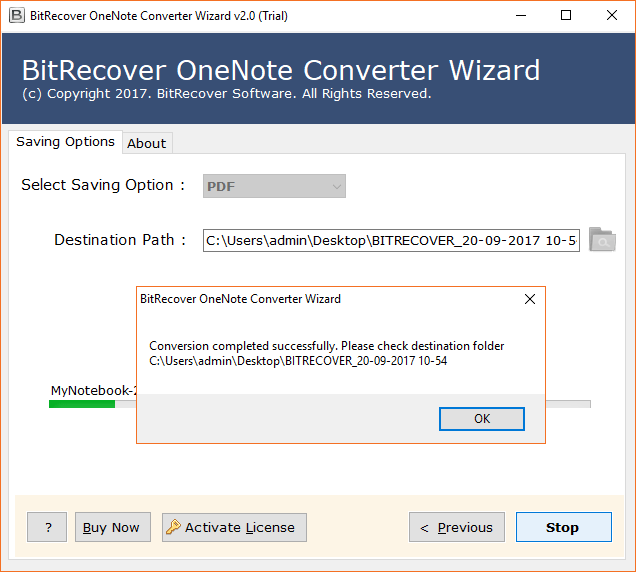
To export OneNote table to Excel you need a reliable and secure solution. OneNote Converter is the best tool that will securely convert OneNote table to Excel sheets. It offers such a wide range of features that will help you to easily convert your data into a format you want easily.
This amazing solution benefits you to streamline the whole process to export OneNote to Excel spreadsheet easily. You just need to follow some quick and easy steps offered by this tool and you will have the accurate results that you wanted. This is one of the most secure and reliable solutions that several professionals recommend to use too.
How to Export OneNote to Excel Quickly
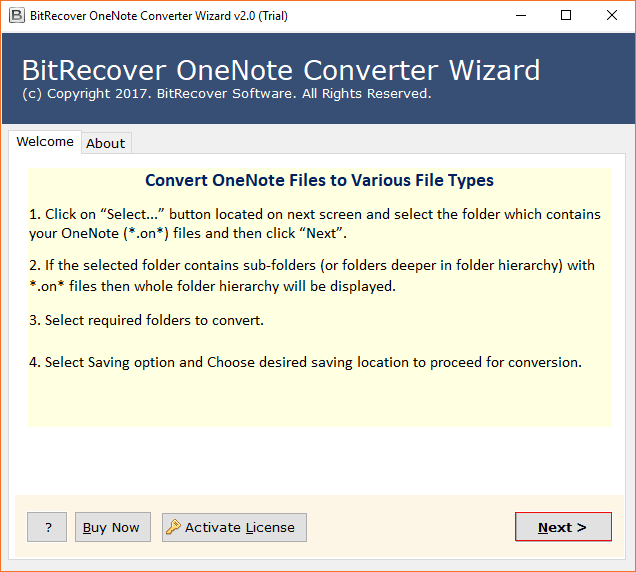
- First of all, download this software to start the process.
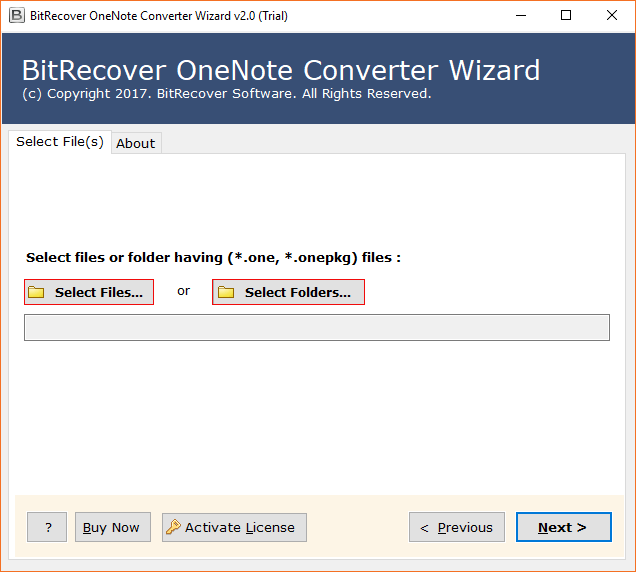
- Choose from Select Files & Select Folders to upload your data file.
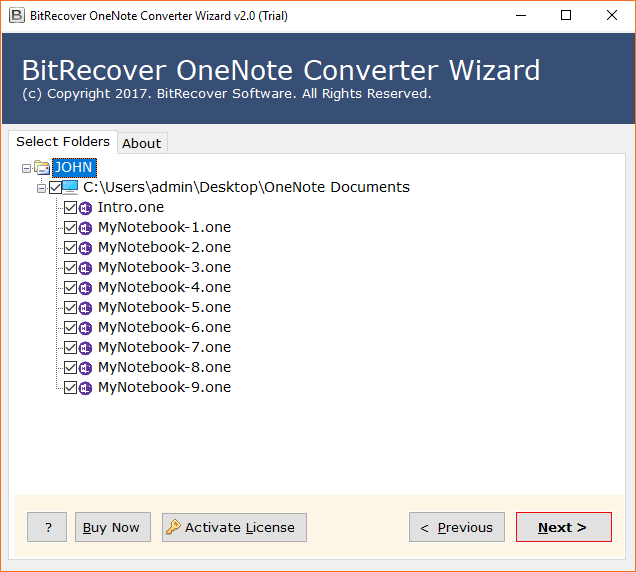
- In the software panel, you need to check all the uploaded files carefully, and click on Next.
- Now, choose XLS file format and saving location through the given browse button.
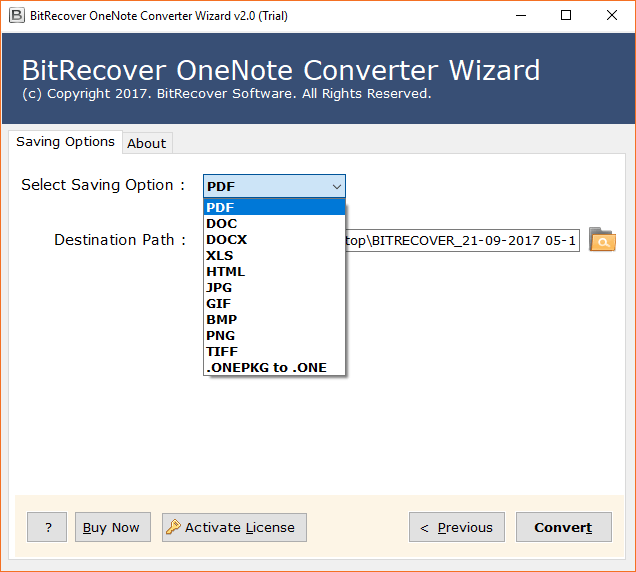
- Lastly, click on Convert button to export OneNote table to Excel sheet.
Why do Users Need to Use this Solution
- The OneNote to Excel Converter converts every OneNote file such as .one and .onepkg into Excel.
- Supports every version of OneNote – 2016, 2013, 2010 & 2007.
- Supports batch conversion of many files at one time.
- Enables you to export selective data according to your requirements.
- Exports in various Excel formats, including .xls.
- Processes entirely offline for safety and quicker processing.
- Users can select any results-saving folder.
- Uses multiple output files, one for every input file (e.g., 1500 inputs = 1500 outputs).
Conclusion
In conclusion to this blog, we have discussed the methods of how to convert OneNote to Excel sheet. For obvious reasons you need to use the best solution to export OneNote to Excel. While manual methods do have some drawbacks that we would not recommend you to use us if you want your files to remain safe and intact. We have mentioned a professional method as well that offers you a wide range of features to convert OneNote table to Excel selectively as per you requirements.