Best TIFF to Word Converter to Convert TIFF to Word Easily
If you want to use the best TIFF to Word converter, then you are on the right page. TIFF files are often used for scanned documents, contracts, reports, and records because they save in high quality. The problem with TIFF is that it is only an image, so you cannot edit or copy the text back out of it. This is why many users search for a TIFF to Word converter so they can make these files editable.
Using the proper tool, you can quickly and easily convert TIFF to Word so that you can take your images and make editable documents. Whether you need TIFF to DOC or TIFF to DOCX, this process will let you open files in Microsoft Word, modify the info, and keep the format. More professional TIFF to DOC converters allow for bulk conversions, making it quick, easy and accurate.
Reasons to Convert Your TIFF to Word
- Editable Content: A TIFF to Word conversion puts the power back in your hands. For longer writing processes, you can edit existing text instead of retyping the situation.
- Better File Size: Word files are thinner and easier to save in comparison to a TIFF image file.
- Better Accessibility: A TIFF to DOC or DOCX file will open in Word unless you have a special viewing software than does not open in Word.
- Document Reuse: A great option if you have scanned in invoices, reports, or forms that you want to edit later on.
- Better Sharing: Word files are accepted by most users vs TIFF image files.
Now that we know the reasons for conversion, we need a good TIFF to Word converter tool. We have come up with the best solution that will help you to easily convert your image data. Let us move forward.
Using Google Docs to Convert TIFF to Word
- To begin, open up your Google Drive account.
- After that, upload all TIFF files you want to convert.
- Next, select an image file and choose Open with.
- Next, choose Google Docs to open the image.
- Once the image opens in the Google Doc page, click on File Download Microsoft Word (.docx).
Convert TIFF to Word Using Microsoft Word
- First of all, open a new document of MS Word.
- Now, drag & drop the TIFF images into the blank document.
- Adjust the position and size according to your needs.
- Now, go to File, then Save As, choose a location, and click on the Save button.
Disadvantages of Manual Conversion
Manual methods for converting TIFF to Word may work for a few files, but these limitations are undeniable. The methods are laborious when converting multiple TIFF images, and the errors in formatting can be cumbersome in terms of lost text and layout. Manual conversion methods are also inefficient for large or confidential documents, because online or free tools can jeopardize privacy and accuracy. This makes manual methods unsuitable for professional applications, where using a dedicated TIFF to Word converter would be a safer and more efficient solution in a professional context.
Convert TIFF to Word Using Professional Method
If you have a TIFF file that you need to convert to Word, you can easily convert it to an editable Word document with a trustworthy TIFF Converter. This solution is the best method that converts TIFF to Word quickly and accurately, with only a few clicks. Plus, it will convert to both formats, so you will have fully editable files in Word using DOC or DOCX as your formats.
One of the great advantages is that you can convert multiple TIFF images into Word documents in bulk, which saves time from converting one at a time. This TIFF to DOC converter is easy to use and has advanced formatting, quality, and accuracy features, plus you don’t need to be a technical expert to use this method
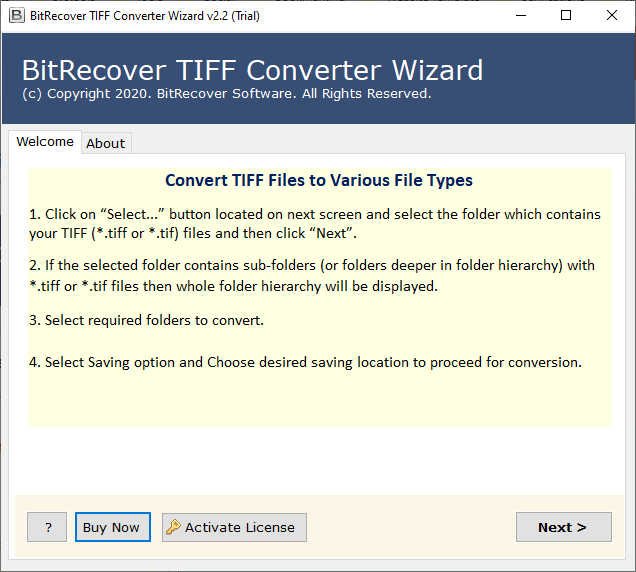
- Download the TIFF to Word converter and install it on your PC.
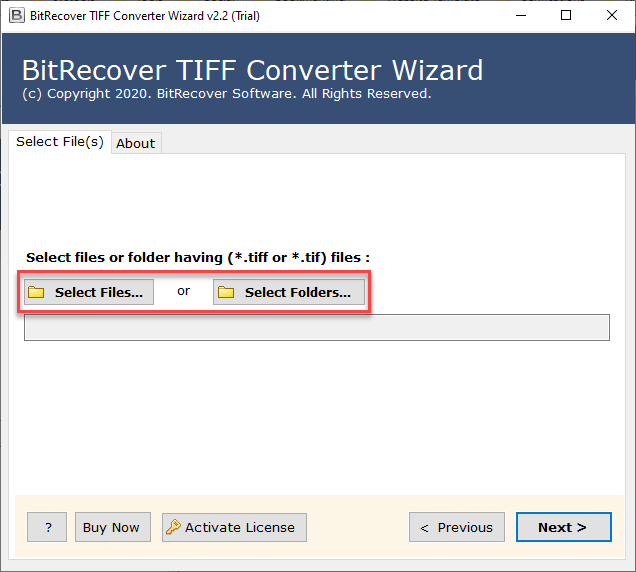
- Then, select your single or multiple TIFF files to upload.
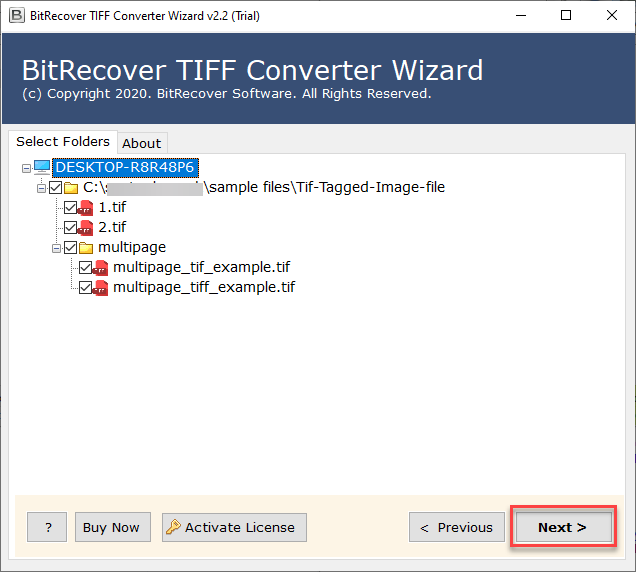
- Check or uncheck as needed your uploaded files.
- Now select DOC/DOCX as the new saving format.
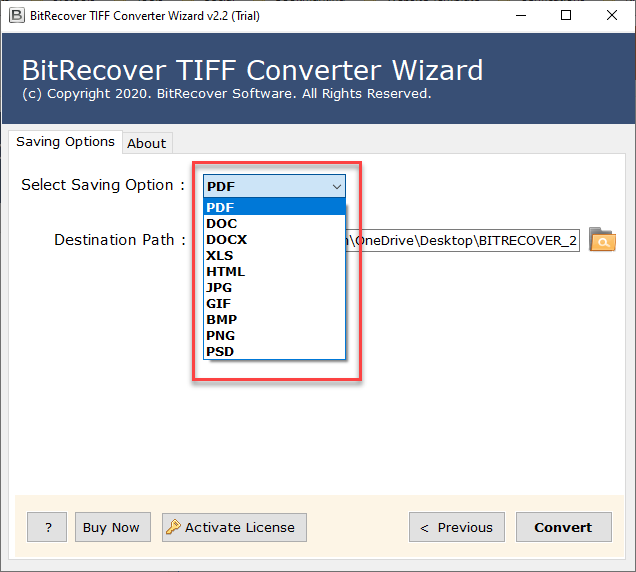
- Choose your destination path to save the newly created files.
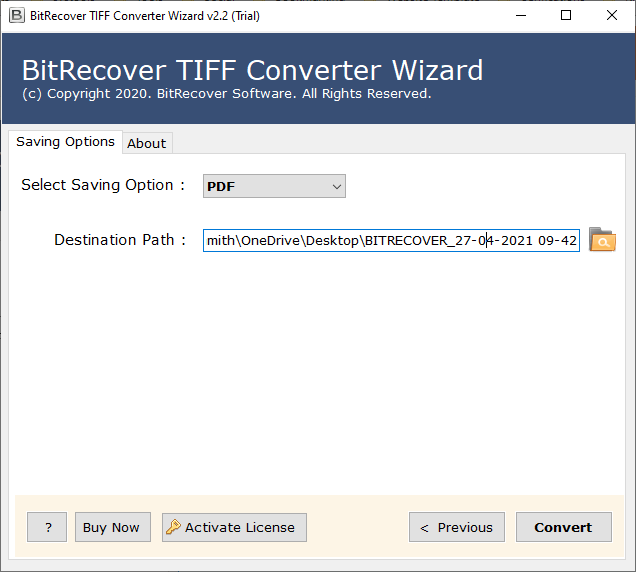
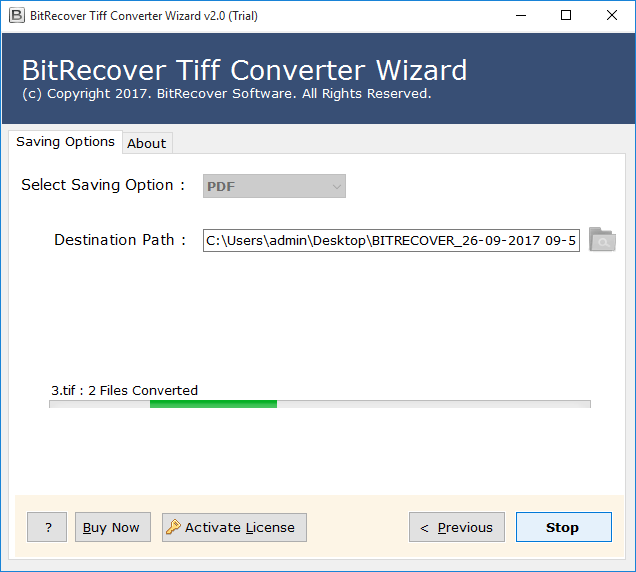
- Finally, click on the Convert button.
Reasons to Use This Software to Convert from TIFF to Word
- Professional quality TIFF to Word converter that is entirely editable in just a few clicks.
- Works well as a standalone TIFF to DOC converter with no extra apps needed.
- Offers two different upload methods, Select Files (to upload one image) or Select Folders (to upload multiple images) to add one or several TIFF files.
- Allows you to preview the TIFF files before the TIFF to word conversion for better accuracy.
- It converts TIFF images to fully editable Word, DOC, or DOCX formats quickly and easily.
- It converts TIFF to Word accurately, while maintaining the clarity, formatting, and layout of the text as you convert the TIFF image to a Word document.
- With the option to convert TIFF files one by one or complete mass processing for bulk image to word conversion, this is the best TIFF to DOCX converter around.
Conclusion
The simplest way of handling scanned images is with a TIFF to Word converter. Allows you to convert TIFF to Word format, either in DOC or DOCX, in a very short amount of time, while maintaining the formatting and quality. A professional TIFF to DOC converter, unlike the manual method, supports batch conversion, saves time, and guarantees accuracy definitely the best option to edit TIFF files.