MailEnable to Exchange Migration: Step-by-Step Server Guide

MailEnable to Exchange Server migration requires a tool that reads MailEnable’s MIME email store and writes directly to Exchange via EWS. The Turgs MailEnable Migration Wizard handles this without requiring an intermediate export step, preserving folder structure and attachments throughout. Free trial available.
MailEnable is a popular Windows mail server for small and medium businesses. Exchange Server is where many of those businesses end up when they scale.
Moving email data from MailEnable to Exchange is not a built-in feature of either platform. This guide covers what the migration involves and how to complete the MailEnable to Exchange migration using the Turgs tool.
Watch the Migration Tutorial
[youtube https://www.youtube.com/watch?v=BcIFqD0Q0aE]
What You Need Before You Start
- Access to the MailEnable server and the email store location
- Exchange Server admin credentials (on-premises Exchange or Exchange Online)
- Windows PC to run the migration tool
- Sufficient free space on the Exchange server for the migrated mailboxes
MailEnable stores email in flat MIME files on the server’s file system. The default location is typically:
C:Program Files (x86)Mail EnablePostoffices[domain]MAILROOT
Each user account has a folder containing a Mime subdirectory where individual emails are stored as text files.
How to Migrate MailEnable to Exchange
Download and install the Turgs MailEnable Migration Wizard on your Windows PC. The free trial migrates 25 emails per folder so you can verify the Exchange import before purchasing.
Step-by-Step: MailEnable to Exchange Migration
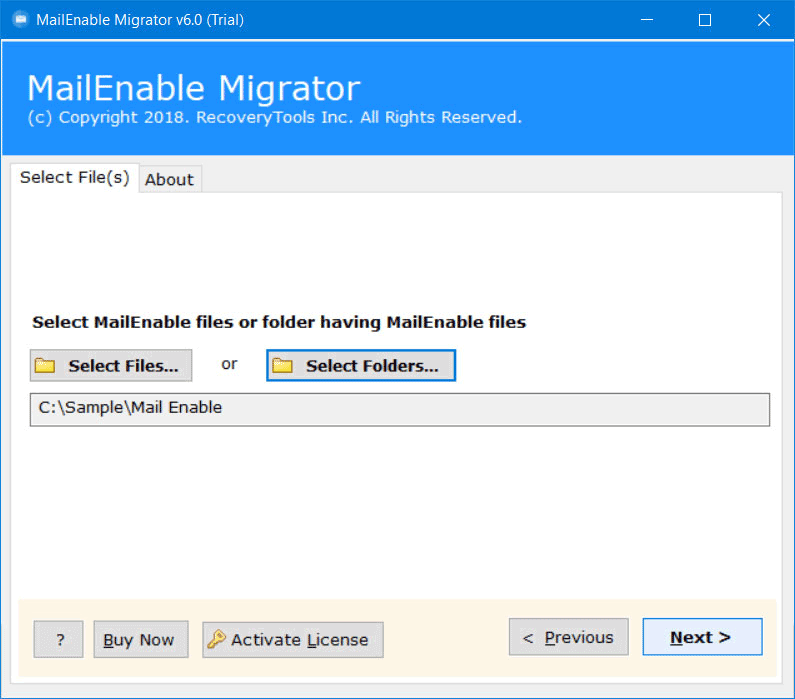
Step 1. Launch the Turgs MailEnable Migration Wizard. Click Add Folder and navigate to your MailEnable MAILROOT directory to load the email store.
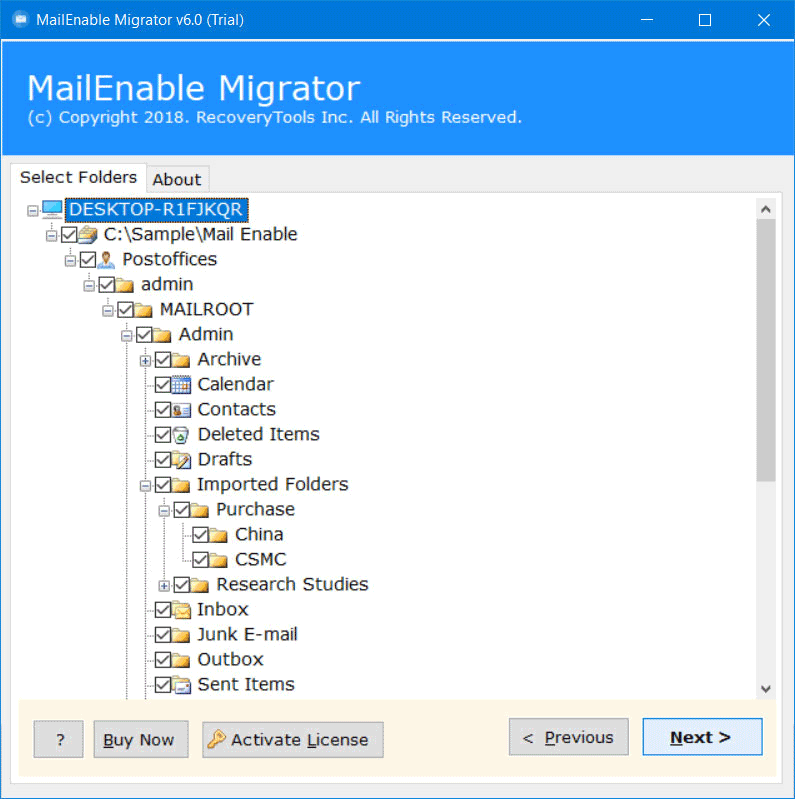
Step 2. The tool scans the MailEnable folder structure and displays all user mailboxes and folders.
Step 3. Select the user accounts or folders you want to migrate. You can tick all accounts for a full server migration or select specific users.
Step 4. From the destination options, select Exchange Server.

Step 5. Choose your Exchange language and encoding settings to match your server configuration.

Step 6. Enter your Exchange Server connection details including the server hostname and admin account credentials.
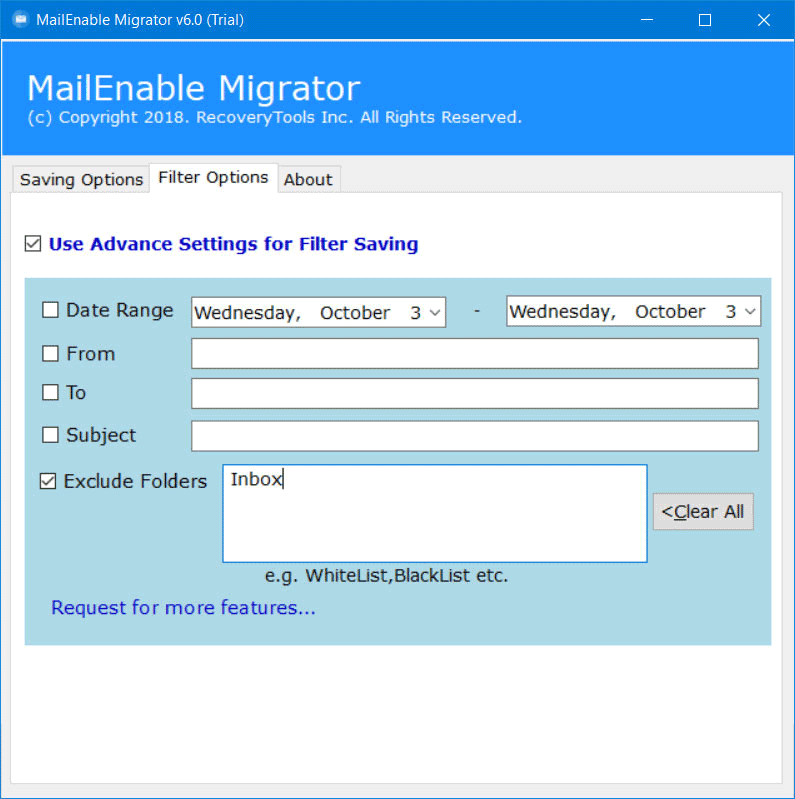
Step 7. Click Migrate. The tool connects to Exchange and starts transferring MailEnable emails to the target mailboxes.

Step 8. When migration is complete, a summary report shows how many emails were transferred per user. Verify by logging into Outlook or OWA with a test account.

Migrating MailEnable Groups to Exchange Distribution Lists
MailEnable groups (mailing lists) can be migrated to Exchange distribution lists as part of the same process. The tool detects MailEnable group definitions and creates corresponding Exchange distribution groups in the target organization.
This is particularly useful for businesses migrating an entire MailEnable deployment to Exchange, where all group email addresses need to continue functioning after the migration.
What Gets Preserved
- Folder structure. Each MailEnable mailbox folder maps to the corresponding Exchange mailbox folder.
- Email metadata. Sender, recipients, subject, date and all headers are preserved.
- Attachments. All file attachments transfer intact.
- Read/unread status. Email read status from MailEnable is preserved in Exchange where supported.
For migrating from other server types to Exchange, see the guide on importing Maildir to Exchange. And if you need to migrate to Office 365 rather than on-premises Exchange, see the MDaemon to Exchange migration guide for a similar workflow.
Are you migrating a single user mailbox or an entire MailEnable server deployment?
Frequently Asked Questions
Can I migrate MailEnable to Exchange Online (Microsoft 365)?
Yes. The Turgs MailEnable Migration Wizard supports Exchange Online as a destination in addition to on-premises Exchange Server. Enter your Microsoft 365 admin credentials in the connection step.
Do I need to stop the MailEnable server during migration?
For a clean migration, stopping MailEnable during the process prevents new emails from arriving mid-migration and ensures a complete copy. If stopping the server is not possible, run the migration during off-peak hours and do a second pass to catch any emails that arrived during the first run.
How long does MailEnable to Exchange migration take?
Migration speed depends on the total mailbox size and network connection to the Exchange server. A 10 GB MailEnable deployment typically migrates in 1 to 3 hours.
What MailEnable versions are supported?
The tool supports all versions of MailEnable Professional and Enterprise that use the standard MIME email store format. Both 32-bit and 64-bit MailEnable installations are supported.
Can I migrate MailEnable to Hosted Exchange?
Yes. Hosted Exchange uses the same EWS connection as on-premises Exchange. Provide your Hosted Exchange admin credentials and server address in the connection step.
What if some MailEnable emails are corrupt?
The tool skips corrupt email files and logs them in a migration report. You can review the report after migration to identify any emails that failed to transfer and take action manually on those specific files.